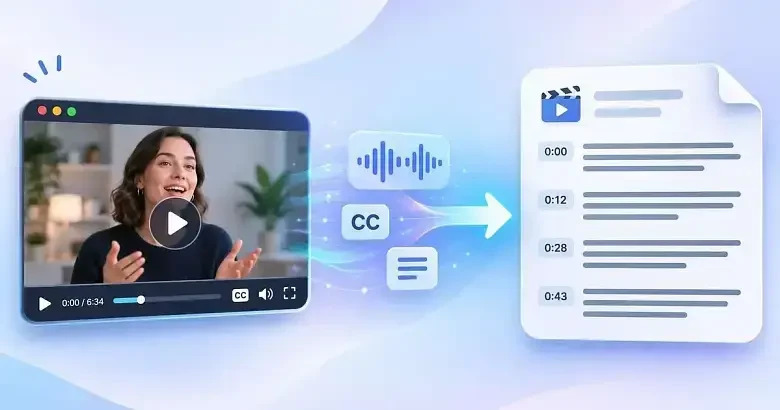
You don't have to watch an entire video just to find a particular quote, study an explanation, or turn spoken content into written notes. If you're searching for how to get youtube transcript text, several methods can help you retrieve it without manually typing every word.
The problem is that YouTube doesn't always make transcripts easy to find or download. Some videos have automatically generated captions, others have creator-uploaded subtitles, and some have no accessible transcript at all.
Fortunately, most captioned videos can be converted into readable text in just a few steps. YouTube provides a built-in transcript viewer, while tools such as Optofriend offer a more convenient way to retrieve, clean, and download the text.
Which Method Should You Choose?
Before choosing a method, decide what you need from the transcript. Reading a short passage requires a different approach from downloading subtitles for video editing or preparing an article.
Method | Best for | Estimated effort | Main limitation |
YouTube's built-in transcript | Reading and copying text | 1–3 minutes | No direct file export |
Optofriend Transcript Generator | Extracting and cleaning text | Under 1 minute when supported | Depends on video accessibility |
YouTube Studio | Downloading captions from your videos | 2–5 minutes | Requires channel access |
Browser extension | Frequent transcription tasks | 3–10 minutes to set up | Installation and permissions |
Speech-to-text software | Videos without usable captions | Minutes to hours | Requires access to the audio |
For most viewers, the first two methods are the simplest. YouTube's built-in feature is sufficient for reading a transcript, whereas Optofriend is more practical when you need reusable text.
Method 1: Use YouTube's Built-In Transcript Feature
The easiest method requires no downloads, browser extensions, or third-party software. YouTube already includes a transcript viewer for videos with available captions.
How to open a YouTube transcript
Open the YouTube video in a desktop browser.
Click ...more in the video description to expand it.
Find the Show transcript option and click it.
A transcript panel will appear beside or below the video.
Click any transcript line to jump to the corresponding moment in the recording.
To save the text, select the relevant lines, copy them, and paste them into a document.
Depending on the interface, you may also find an option to hide timestamps inside the transcript panel. This is useful when you want uninterrupted text rather than a series of time-coded captions.
YouTube's transcript viewer works with both manually uploaded subtitles and automatically generated captions. However, the accuracy of the text depends on the original caption track.
Advantages: This method is free, requires no setup, and allows you to navigate directly to the relevant section of a video.
Limitations: YouTube doesn't provide a standard download button in its public transcript viewer. The copied text may also contain unnecessary line breaks, timestamps, and transcription mistakes.
If your goal is simply to read or copy a few paragraphs, this method is usually enough.
Method 2: Use YouTube Transcript Generator by Optofriend
Copying a transcript manually works, but it becomes inconvenient when you need text from multiple videos or want to repurpose spoken content into an article.
Optofriend provides a web-based alternative that retrieves a video's transcript using its URL. It also offers AI-powered normalization to improve the readability of the resulting text.
How to use Optofriend
Open YouTube and copy the URL of the video you want to transcribe.
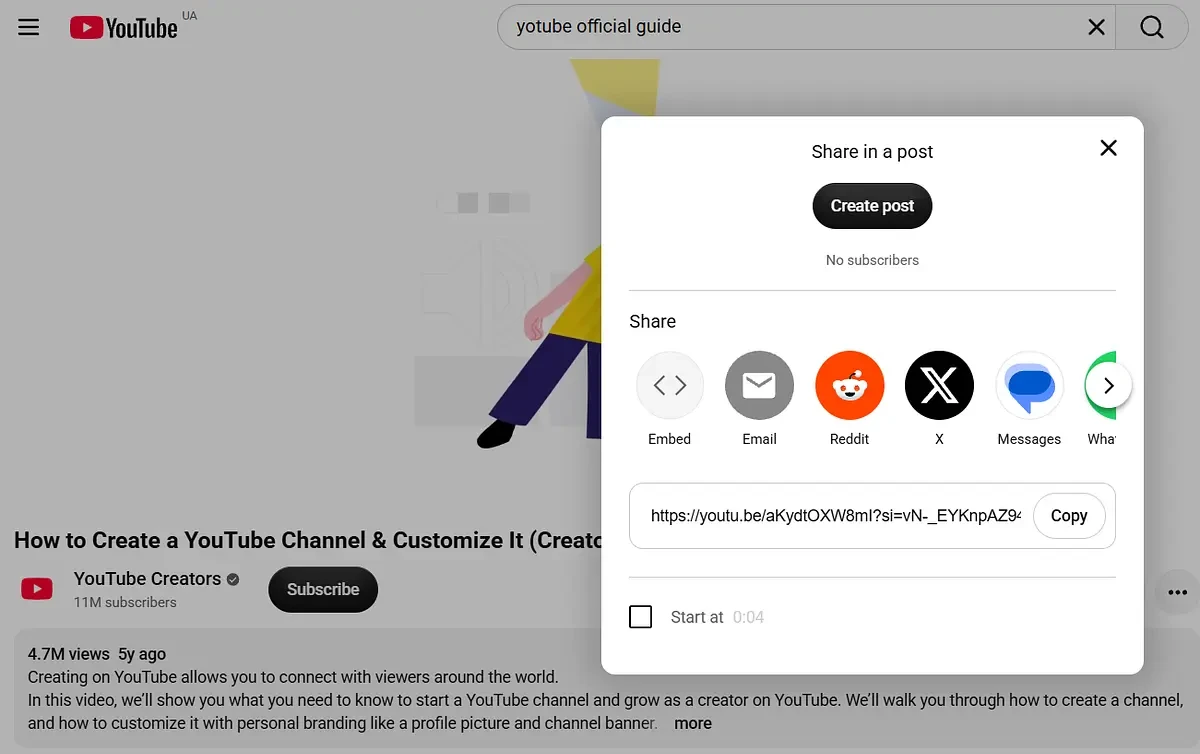
Visit Optofriend to get YouTube transcript.
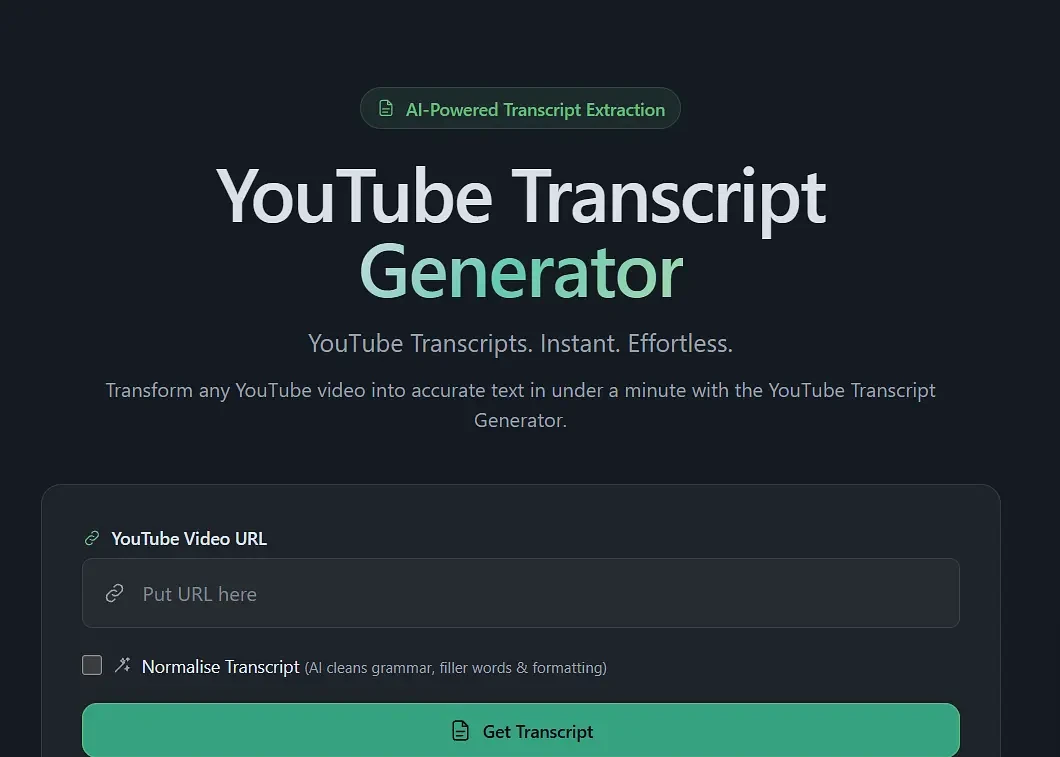
Paste the video URL into the YouTube Video URL field.
Enable Normalise Transcript if you want AI to clean grammar, filler words, and formatting.
Click Get Transcript.
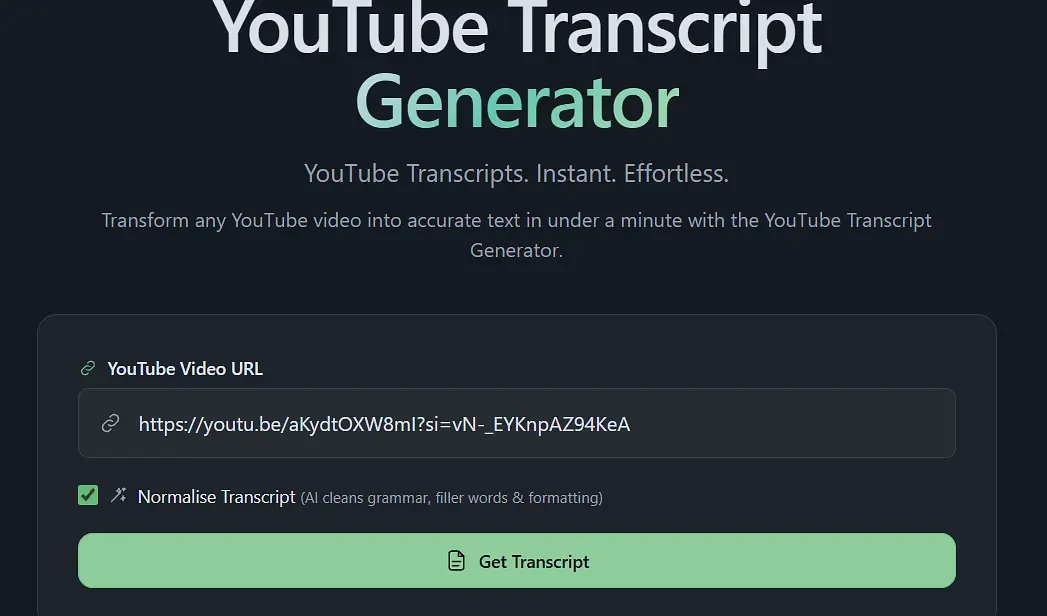
Review the generated transcript and use the available download option to save it.
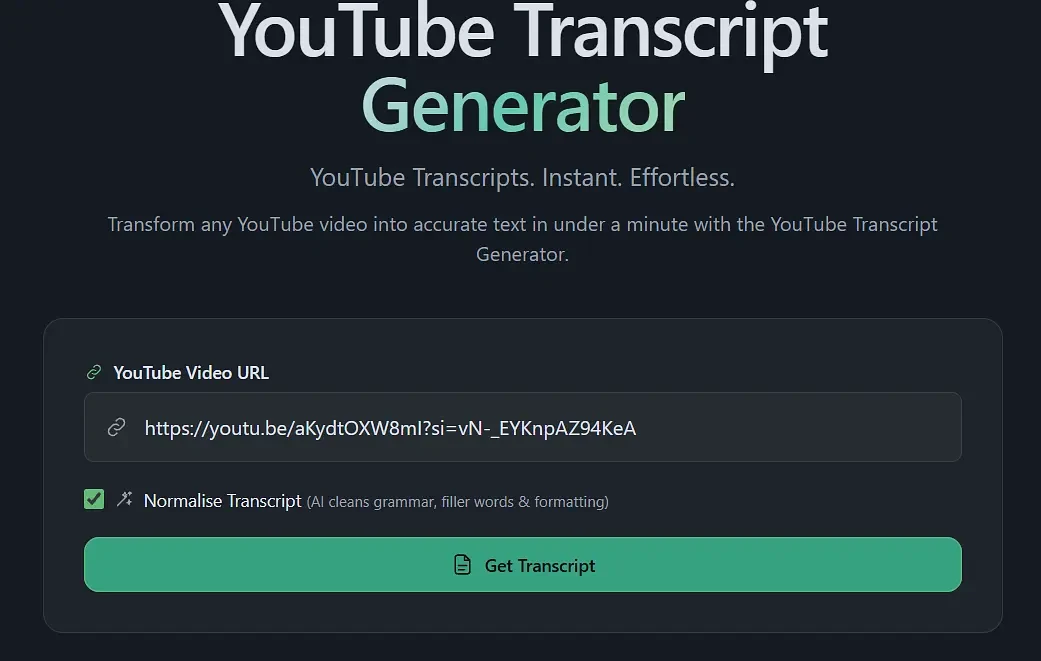
The service can retrieve timestamped transcripts from publicly accessible YouTube videos, with typical processing taking less than a minute.
The normalization feature is particularly helpful when you need a readable document rather than a verbatim record of every hesitation and repeated phrase.
For example, an automatically generated transcript may contain fragmented sentences, inconsistent punctuation, and repeated expressions. Cleaning the text can make it considerably easier to use for research, summaries, and content creation.
However, normalization should not replace proofreading. AI-assisted editing may change wording, especially around technical terms, proper names, or ambiguous speech. If you need an exact quotation, compare it with the original audio.
Advantages: No software installation, a straightforward URL-based workflow, downloadable transcript output, and optional AI cleanup.
Limitations: Video access and transcript availability can affect the result. The public product page confirms downloading and timestamps but doesn't specify every supported export file extension.
Method 3: Download Captions Through YouTube Studio
If you own the video, YouTube Studio gives you more direct control over its subtitle tracks. Unlike the public transcript viewer, Studio allows creators to download caption files and edit them.
How to download your video's transcript
Open YouTube Studio and sign in.
Select Subtitles from the left-hand menu.
Choose the video you want to work with.
Find the available subtitle track and language.
Click Edit for that track.
Open Options and select Download subtitles.
Save the file to your computer.
The resulting file may include timing information alongside the spoken text. This makes it useful for editing captions, translating videos, or preserving a synchronized transcript.
YouTube Studio also allows you to correct automatic captions before downloading them.
The main limitation is ownership. You need access to the channel that manages the video, so this method isn't appropriate for downloading someone else's captions through Studio.
Method 4: Use a Browser Extension
Browser extensions can add transcript-related controls directly to YouTube, reducing the need to switch between websites.
Extensions such as Glasp and Tactiq offer transcription-related workflows, although their specific capabilities and free limits differ.
To use this method:
Open your browser's official extension store.
Find a reputable extension with YouTube transcription support.
Review its permissions, privacy policy, and recent updates.
Install it and open a YouTube video.
Use the extension's transcript interface to retrieve or copy the text.
Extensions are particularly convenient for users who regularly research videos. However, they also add another dependency to the browser and may require permission to access webpage content.
For occasional transcription, a web-based generator is generally easier to use.
Method 5: Generate a Transcript From Audio
What happens when a video doesn't have captions?
YouTube's built-in viewer cannot display a transcript if no caption track is available. Caption-extraction services may encounter the same limitation.
In that situation, you need actual speech recognition rather than a tool that only retrieves existing captions.
If you own the video or have permission to process it, you can:
Obtain the original video or audio file.
Open a speech-to-text application that supports file uploads.
Select the language spoken in the recording.
Upload the file and start transcription.
Review the generated text and export it in the required format.
Applications using speech-recognition models such as Whisper can generate text directly from audio, even when YouTube has not created captions.
This method requires more processing and may involve additional costs or setup. It is nevertheless useful for recordings with missing subtitles, interviews, podcasts, and older videos.
How to Get a Transcript for a YouTube Short
Getting a YouTube Shorts transcript is slightly different because the Shorts player doesn't provide the same transcript interface as regular YouTube videos.
The underlying caption system is similar, but accessing it can require an additional step.
Method 1: Convert the Shorts URL
Each Short has a video identifier that can be used to open it through YouTube's standard watch page.
For example, a Shorts address follows this structure:
https://www.youtube.com/shorts/VIDEO_ID
Replace the address with:
https://www.youtube.com/watch?v=VIDEO_ID
Then open the modified URL in a desktop browser, expand the description, and look for Show transcript.
This workaround may expose the standard transcript interface when captions are available. Some YouTube interface versions may redirect the video back to the Shorts player.
Method 2: Use a transcript generator
You can also try a URL-based transcription service.
Copy the Short's link, paste it into a compatible generator, and retrieve the available caption text. Not every service accepts Shorts URLs directly, so the standard watch URL may be necessary.
For Optofriend specifically, regular public YouTube URLs are documented, but direct support for /shorts/ links is not explicitly confirmed on its public page.
Once the text is available, you can review it in the same way as any regular video transcript.
The main difference is accessibility, not the transcription process itself. YouTube also supports automatically generated captions for Shorts, although availability and accuracy vary.
Best Transcript Formats
The format you choose matters almost as much as the method used to retrieve the text.
A plain transcript is useful for reading and content writing. Subtitle files preserve timing information, while structured formats are better suited to automation and software development.
Format | Best use | How to get it |
|---|---|---|
TXT | Notes, research, articles | Copy transcript text or use a text-export tool |
SRT | Video subtitles | Download a compatible timed-caption file |
VTT | Web video captions | Export subtitles from a supported caption editor |
DOCX | Editing and collaboration | Paste transcript text into Word or convert a text file |
Sharing and archiving | Export a prepared document as PDF | |
JSON | APIs and automation | Use a tool that supports structured transcript export |
Markdown | Knowledge bases and AI workflows | Convert transcript text into Markdown formatting |
Which format works best with Optofriend?
Optofriend currently advertises downloadable transcripts with timestamps and an optional AI-normalization feature. Its public product page does not identify the exact file extensions available for download.
For ordinary writing and research, a clean text transcript is the most useful starting point. You can paste it into a text editor, Word, Google Docs, or another application and save it in your preferred document format.
For subtitling, choose a service or caption editor that explicitly supports SRT or VTT. These formats include timing information needed to synchronize text with the video.
How to Improve YouTube Transcript Accuracy
Even an automated transcription tool cannot guarantee perfect results. Speech recognition depends on several factors, including recording quality, background noise, and how clearly words are pronounced.
Here are practical ways to improve the outcome.
1. Start with better audio quality. If you're transcribing your own recording, reduce background noise and use a microphone positioned close to the speaker. Clear audio generally produces more reliable recognition than heavily compressed or noisy recordings.
2. Check the spoken language. When a transcription tool allows language selection, choose the correct language rather than relying exclusively on automatic detection. Multilingual recordings may require additional editing.
3. Avoid overlapping dialogue. Multiple speakers talking simultaneously can confuse speech-recognition systems. For recordings you control, separate interviews into distinct speaking turns where possible.
4. Review proper nouns and technical vocabulary. Product names, uncommon surnames, abbreviations, and specialized terminology are common sources of mistakes. Verify them against the recording.
5. Preserve the original before cleaning. AI normalization can improve punctuation and readability, but it may also remove repetitions or modify expressions that matter. Keep an unchanged transcript when exact wording is important.
6. Check timestamps separately. A transcript can be linguistically accurate while its timecodes are misaligned. Verify important timing points if you intend to use the file for captions.
YouTube itself recommends reviewing automatically generated captions because recognition errors can result from accents, dialects, pronunciation, and background noise.
Why Can't You Find a Transcript on YouTube?
Sometimes the Show transcript option is missing entirely. This doesn't necessarily mean the video has no spoken content.
Possible explanations include:
Captions are unavailable. The creator has not provided a subtitle track, and YouTube hasn't generated one.
Processing is incomplete. New uploads may need additional time before automatic captions appear.
Audio quality is insufficient. Music, background noise, or unclear speech can prevent successful caption generation.
The language isn't supported. Automatic captioning isn't available for every language or recording.
The video has accessibility restrictions. Private, removed, or otherwise inaccessible content cannot be retrieved through ordinary public tools.
You're using the Shorts interface. The transcript may be available through the regular watch page instead.
Start by checking whether the video's CC button offers captions.
If captions exist, try opening the transcript through a desktop browser. If the transcript remains unavailable, test a compatible extraction service.
When no caption track exists, switch to speech-to-text software capable of analyzing the original audio, provided you have permission to access and process it.
Repeatedly trying caption-extraction websites will not necessarily solve the problem because many of them depend on the same underlying YouTube caption data.
What Can You Do With a YouTube Transcript?
Once you extract transcript text, you can use it for much more than simply reading what someone said.
Turn videos into written content
A transcript gives creators a starting point for blog posts, newsletters, descriptions, and educational materials.
For example, a 20-minute tutorial may contain several independent explanations that could become shorter articles or social posts.
However, raw transcripts rarely work as finished articles. They need structure, fact-checking, headings, and editing to serve a written audience.
Create searchable study notes
Students and researchers can use transcripts to locate definitions, identify important explanations, and revisit particular passages.
Timestamps make it possible to verify information without watching an entire lecture again.
Prepare summaries and AI workflows
A transcript can serve as source material for generating summaries, chapter outlines, questions, and other structured content.
For better results, preserve important context and identify speakers where necessary. An AI summary should also be checked against the original transcript, especially when the video discusses technical or sensitive information.
Improve video accessibility
Captions and transcripts make spoken information available to people who cannot hear the audio clearly or prefer reading.
Creators can also use corrected transcript text to produce subtitles in other languages. Properly timed captions are more useful for playback than plain text alone.
If the original video belongs to someone else, remember that accessing its transcript doesn't automatically grant permission to republish the content.
Conclusion
Getting a YouTube transcript is usually straightforward once you know where to look.
If you only need to read or copy spoken text, start with YouTube's built-in Show transcript feature. It requires no installation and works with videos that have captions.
For a more convenient workflow, Optofriend provides URL-based transcript extraction, timestamps, downloadable output, and optional AI normalization to make the text easier to work with.
YouTube Studio is the better option for creators who need to download or edit captions from their own videos. When captions are missing entirely, audio-based speech recognition is the appropriate alternative.
Whatever method you choose, review the text before publishing, quoting, or turning it into new content. A useful transcript should be more than accessible: it should also accurately represent what was said.