
You open a 40-minute tutorial to find one step, or a two-hour interview to hear one answer, and end up dragging the progress bar back and forth until you land somewhere close.
Timestamps solve this. They let viewers jump straight to a specific moment instead of searching through the whole recording. Creators use them in three ways: as clickable navigation points, as video chapters that split a video into named sections, and as links that start playback at a particular time.
YouTube supports chapters you write yourself and chapters it generates automatically, and external tools can help you produce a timestamp list faster. This guide explains what chapters and timestamps are, how to add them on desktop and mobile, how to fix chapters that don’t appear, and how to automate the process.
What Are Video Chapters and How They Work
YouTube video chapters are named sections that divide a video into smaller, navigable parts. Instead of one continuous timeline, viewers get a structure they can scan and move through.
In the YouTube player, chapters show up in several places:
A segmented progress bar. The timeline is split into separate pieces, one for each chapter.
Chapter titles. Hovering over or scrubbing through the bar shows the name of the section.
Chapter navigation. Viewers can open a list of chapters and move between sections.
Other surfaces. Chapter information can also appear alongside the transcript and in supported search experiences.
Chapters work best for videos with a clear internal structure: tutorials with sequential steps, interviews and podcasts with several topics, reviews that cover different features, and lessons that build from one concept to the next.
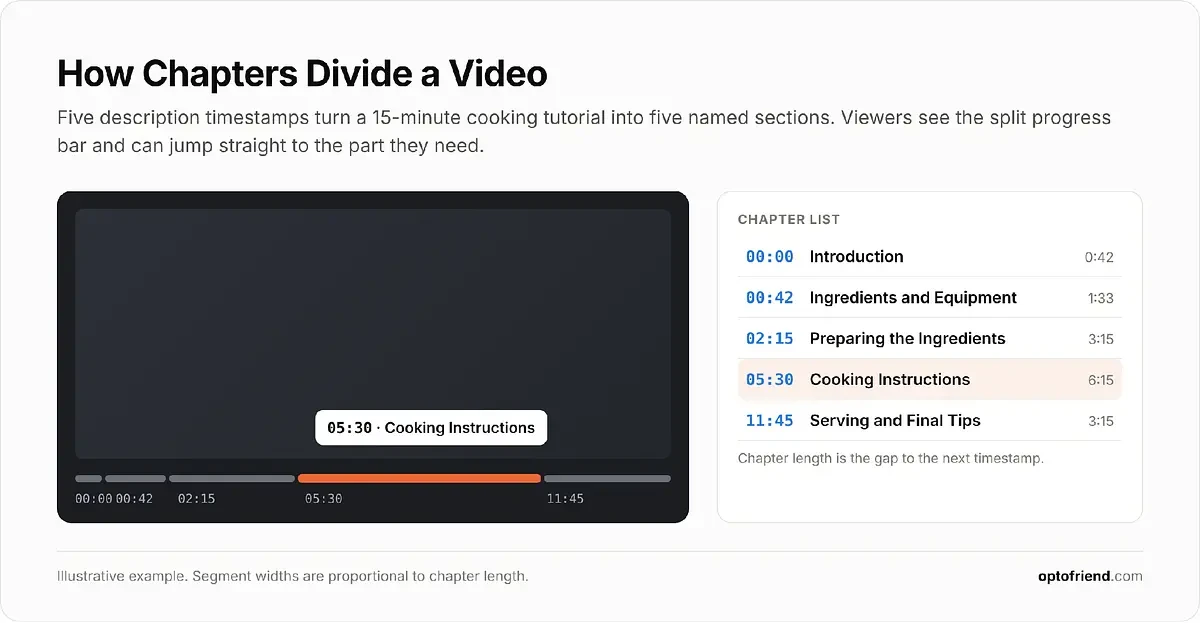
For example, a 15-minute cooking tutorial might use these chapters:
00:00 Introduction
00:42 Ingredients and Equipment
02:15 Preparing the Ingredients
05:30 Cooking Instructions
11:45 Serving and Final Tips
A viewer who already has everything prepared can click “Cooking Instructions” and start at 05:30, skipping the first five and a half minutes.
Manual vs. Automatic YouTube Chapters
There are two ways a video can get chapters:
Manual chapters: you write the timestamps and section titles in the video description.
Automatic chapters: YouTube identifies possible sections and generates chapters for eligible videos.
The main difference is control. With manual chapters, you decide exactly where each section starts and what it’s called. Automatic chapters take no effort, but YouTube won’t always split the video where a viewer would expect, and its titles may be vaguer than yours.
If you add a valid chapter list to the description, your manual chapters override the automatic ones. Keep in mind that not every video qualifies for chapters at all: availability depends on YouTube’s eligibility requirements, which are covered in the troubleshooting section.
What Are Timestamps
A timestamp is a time reference that points to a particular moment in a video. YouTube recognizes timestamps written as minutes and seconds, or hours, minutes, and seconds, separated by colons:
Format |
Meaning |
|---|---|
00:15 |
15 seconds into the video |
02:30 |
2 minutes and 30 seconds |
15:45 |
15 minutes and 45 seconds |
1:05:30 |
1 hour, 5 minutes, and 30 seconds |
Timestamps can appear in several places:
Video descriptions, either as single references or as a full chapter list.
YouTube comments and replies.
Timestamped sharing links, where the time is part of the URL.
Lists of chapter titles, where each title is paired with its starting time.
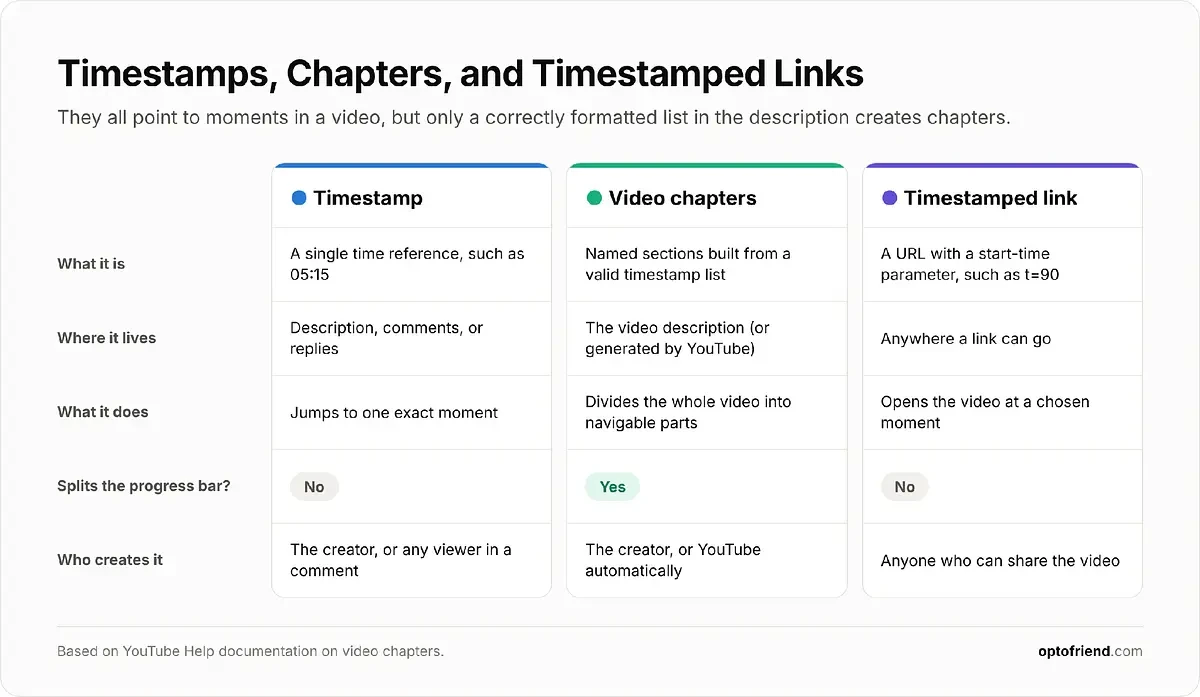
Timestamps and chapters are related, but they aren’t the same thing. A single clickable timestamp takes a viewer to one exact moment without creating any chapters. To create manual chapters, YouTube needs a correctly formatted list of timestamps in the description that meets its chapter rules. That’s also why timestamps in comments, even a long list of them, don’t divide the video into chapters.
Why Timestamps are Important
Adding timestamps takes a few minutes, but it changes how people can use your video.
Make Videos Easier to Navigate
Chapters work like a table of contents. Viewers can see what the video covers and go straight to the part they need: a tutorial viewer skips the installation they’ve already done, a podcast listener jumps to the guest they came for, and a student returns to the concept they didn’t understand.
Make Videos More Useful to Viewers
Timestamps make a video easier to come back to. Viewers can revisit an instruction, find a particular discussion, or share an important moment without rewatching everything around it. Clear chapter titles also help anyone who wants to locate information quickly, including people who navigate with a keyboard. Chapters complement captions and transcripts; they don’t replace them.
Help Search Engines Understand Video Content
Descriptive chapter titles tell search engines what subjects a video covers and where each one starts. Google uses this kind of information for its Key Moments feature, which can show links to specific parts of a video directly in search results.
Google may identify key moments automatically or use the timestamps supplied in a YouTube description. Either way, adding timestamps doesn’t guarantee that Key Moments will appear for your video, and it doesn’t guarantee better rankings. Note that Key Moments are a Google Search feature, separate from chapter navigation inside the YouTube player.
Support Viewer Engagement
When viewers can find the section they want, they’re less likely to leave in frustration and more likely to return to a video they found useful. That improves the viewing experience, but adding chapters won’t automatically improve retention, watch time, or recommendations.
How to Add YouTube Chapters Manually
YouTube lets you create chapters by writing timestamps and titles directly in the video description. Here’s the complete process.
Step 1. Open YouTube Studio
Sign in to YouTube.
Open YouTube Studio.
Select Content from the left menu.
Find the video and click its title or thumbnail to open the editing page.
You can add chapters to any video you’ve already uploaded. There’s no need to re-upload it.
Step 2. Identify the Main Sections of Your Video
Watch the video and note where it moves to a meaningful new subject. Create a timestamp whenever the video shifts to a distinct topic, tutorial step, question, or major segment, and write down the exact time each section begins.
Base the boundaries on the content itself, not on arbitrary intervals. “Every two minutes” produces chapters that start mid-sentence and describe nothing in particular.
Step 3. Add Timestamps to the Video Description
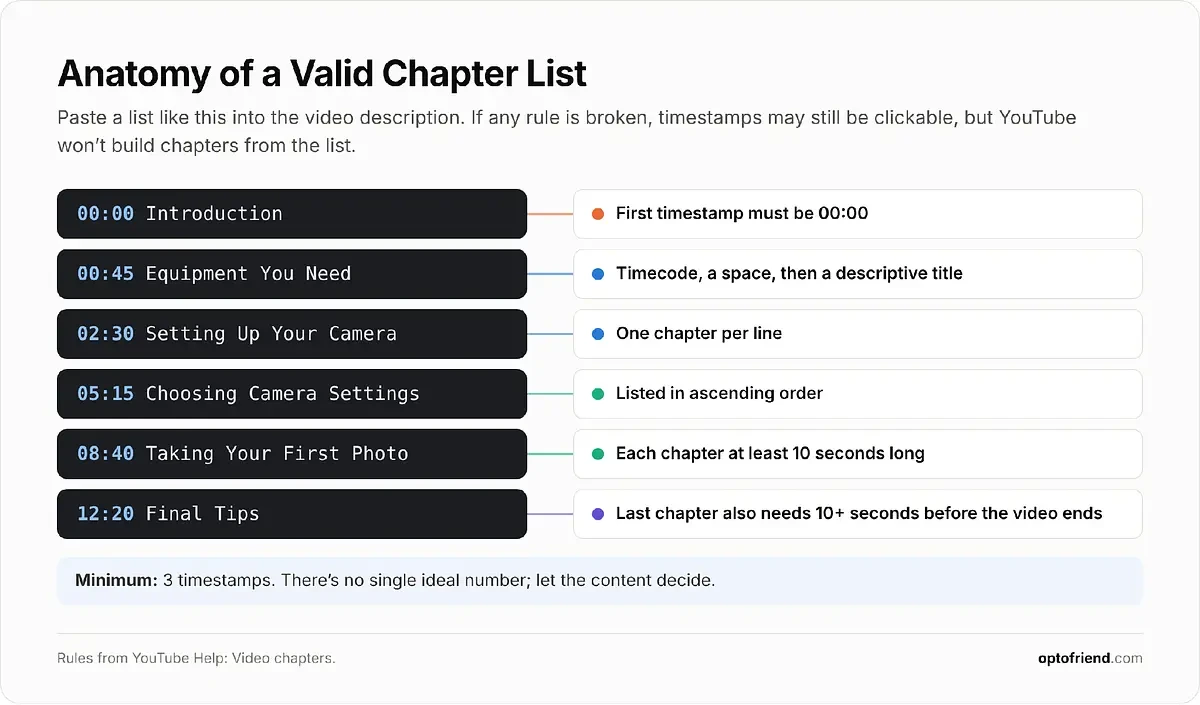
The Description field sits just below the title on the video’s details page. Add your chapter list there, for example:
00:00 Introduction
00:45 Equipment You Need
02:30 Setting Up Your Camera
05:15 Choosing Camera Settings
08:40 Taking Your First Photo
12:20 Final Tips
For YouTube to turn this list into chapters, it has to follow these rules:
Each timestamp starts on a separate line.
A descriptive chapter title follows each timecode.
Timestamps are listed in chronological (ascending) order.
The first timestamp starts at 00:00.
There are at least three timestamps.
Every chapter is at least 10 seconds long.
The last rule includes the final chapter: its timestamp needs to be at least 10 seconds before the end of the video. These requirements apply to chapter lists only. Mentioning a single moment in a comment doesn’t need any of them.
Step 4. Save the Changes
Select Save in the top-right corner. If the video and channel meet YouTube’s requirements, YouTube uses the description timestamps to create manual chapters.
Step 5. Verify That the Chapters Work
Open the published video and check:
Whether the progress bar is divided into sections.
Whether the chapter titles appear correctly.
Whether clicking a timestamp takes you to the expected moment.
Whether each chapter label matches what’s actually happening on screen.
Test several chapters, especially the first and last ones, since those are where formatting mistakes usually show up. If the chapters don’t appear at all, go to the troubleshooting section later in this guide.
How to Add Timestamps on YouTube Using Your Phone
You can edit video descriptions, and therefore add chapters, in the YouTube Studio mobile app:
Open the YouTube Studio app.
Select Content from the bottom menu.
Choose the uploaded video.
Tap Edit (the pencil icon).
Open the description field.
Paste or type the timestamps and chapter titles.
Save the changes.
The formatting rules are exactly the same as on desktop. Some labels and menu positions may differ between app versions and between Android and iOS, but the description field is always part of the video’s edit screen.
If you’re identifying many sections by hand, it’s easier to watch the video and write the list in a notes app first, then paste the finished list into the description. Once you’ve saved, open the published video to confirm the chapters appear.
How to Add Automatic Chapters to YouTube Videos
Automatic chapters are YouTube’s built-in alternative to writing each chapter yourself. For eligible videos, YouTube can detect section boundaries and generate chapter titles on its own.
Enable Automatic Video Chapters
Open YouTube Studio.
Select Content.
Choose the video.
Click Show more.
Find the Automatic chapters setting.
Check Allow automatic chapters, if it’s available.
Save the settings.
This option is turned on by default for new uploads, but that doesn’t mean every video gets chapters. Some eligible videos won’t have automatic chapters generated. To change the default for all future uploads, go to Settings > Upload defaults > Advanced settings.
Automatic vs. Manual Chapters: Which Is Better?
Factor |
Manual Chapters |
Automatic Chapters |
|---|---|---|
Chapter boundaries |
Selected by the creator |
Identified by YouTube |
Chapter titles |
Written by the creator |
Generated automatically |
Time required |
More manual work |
Less manual work |
Control |
High |
Limited |
Accuracy |
Depends on the creator |
Depends on automated analysis |
Availability |
Subject to eligibility |
Subject to eligibility and generation |
Manual chapters are the better choice when precise labels matter: technical tutorials, interviews, educational lessons, or any video where viewers are looking for one specific part. Automatic chapters are useful when you don’t have time to prepare a list, especially for a back catalog of older videos.
If you rely on automatic chapters, watch the video with them at least once. Check that the boundaries fall at real transitions and that the titles describe what each section covers. If they don’t, replace them with a manual list.
How to Add Timestamps to YouTube Comments
Comments can contain clickable timestamps that jump to a specific moment in the video. This is a separate feature from chapters: a comment timestamp points to one moment, while a chapter list in the description structures the whole video.
To add one:
Open the video on YouTube.
Scroll to the comments section.
Type the time of the moment you want to reference.
Add a short explanation if it helps.
Publish the comment.
Check that the timestamp turned into a clickable link.
For example:
The explanation of camera settings starts at 05:15.
Comment timestamps are useful for:
Answering a viewer’s question by pointing to the moment that covers it.
Highlighting a specific tutorial step.
Directing viewers to a particularly useful explanation.
Referencing a moment during a discussion in the replies.
Pinning a comment with navigation links to the most important parts.
A pinned comment with timestamps is handy for viewers, but it doesn’t replace a correctly formatted chapter list in the description. Only the description list can create chapters.
How to Share a YouTube Video With a Specific Timestamp
You can also create a link that opens a video at a chosen moment. Unlike a chapter list, which is stored in the description and visible to everyone who opens the video, a timestamped link only affects the person who clicks it.
Create a Timestamped Link Using YouTube’s Share Button
On desktop:
Open the YouTube video.
Move playback to the moment you want to share.
Click Share.
Check the Start at box.
Confirm that the time next to it is correct, or type a different one.
Copy the link.
Anyone who opens the link will start watching from that moment.
Manually Add a Timestamp to a YouTube URL
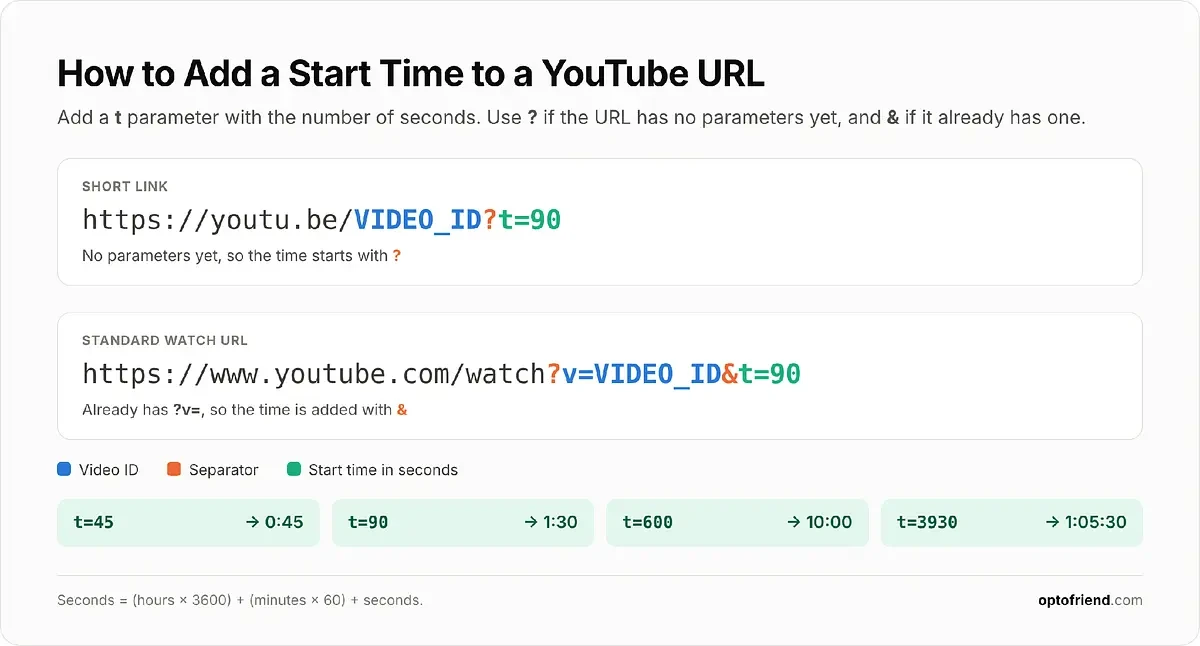
You can also add the start time to a URL yourself with the t parameter, followed by the number of seconds. How you attach it depends on whether the URL already contains a parameter.
Short YouTube URL:
https://youtu.be/VIDEO_ID?t=90
Standard watch URL:
https://www.youtube.com/watch?v=VIDEO_ID&t=90
In both examples, 90 means 90 seconds, so the video starts at 1:30. The short URL has no parameters yet, so the time is added with ?t=. The standard watch URL already has one (?v= followed by the video ID), so the time is added with &t=.
On a phone, you can copy the video link from the share options in the YouTube app and add the time parameter manually in the same way before sending it.
YouTube Timestamp Best Practices
A valid chapter list isn’t automatically a useful one. Its value depends on how accurately and clearly it organizes the video.
Write Descriptive Chapter Titles
Each title should summarize what happens in that section, so a viewer can decide whether to watch it without clicking.
Weak Chapter Title |
Better Chapter Title |
|---|---|
Part 1 |
Choosing the Right Camera |
Step 2 |
Adjusting Aperture and ISO |
More Information |
Common Photography Mistakes |
Final Section |
Editing Your First Photo |
Use relevant keywords where they make a title clearer, but don’t repeat the same keyword in every chapter, write titles that misrepresent the content, or add promotional phrases like “Don’t miss this!”
Choose Meaningful Chapter Boundaries
Chapter divisions should match real changes in subject or task. Splitting a video into many tiny sections just to have more chapters makes navigation harder, not easier. Ten seconds is YouTube’s technical minimum, not a recommended chapter length.
Keep Timestamps Accurate
Timestamps have to match the final published version of the video. If you prepare a list from a rough cut and then trim the intro or move a segment, every timestamp after the change can be off. Check the list against the finished video after editing and before publishing.
Match the Chapter Structure to the Video Format
Tutorials: separate important tasks or steps.
Interviews: mark distinct discussion topics or questions.
Podcasts: organize the major topics and conversations.
Product reviews: separate features, demonstrations, strengths, limitations, and the verdict.
Educational videos: separate concepts or lessons.
Gaming videos: mark major missions, mechanics, or strategy explanations.
There’s no fixed number of chapters that suits every video. A 6-minute review might need four; a 2-hour podcast might need twenty.
Why Are YouTube Timestamps or Chapters Not Working?
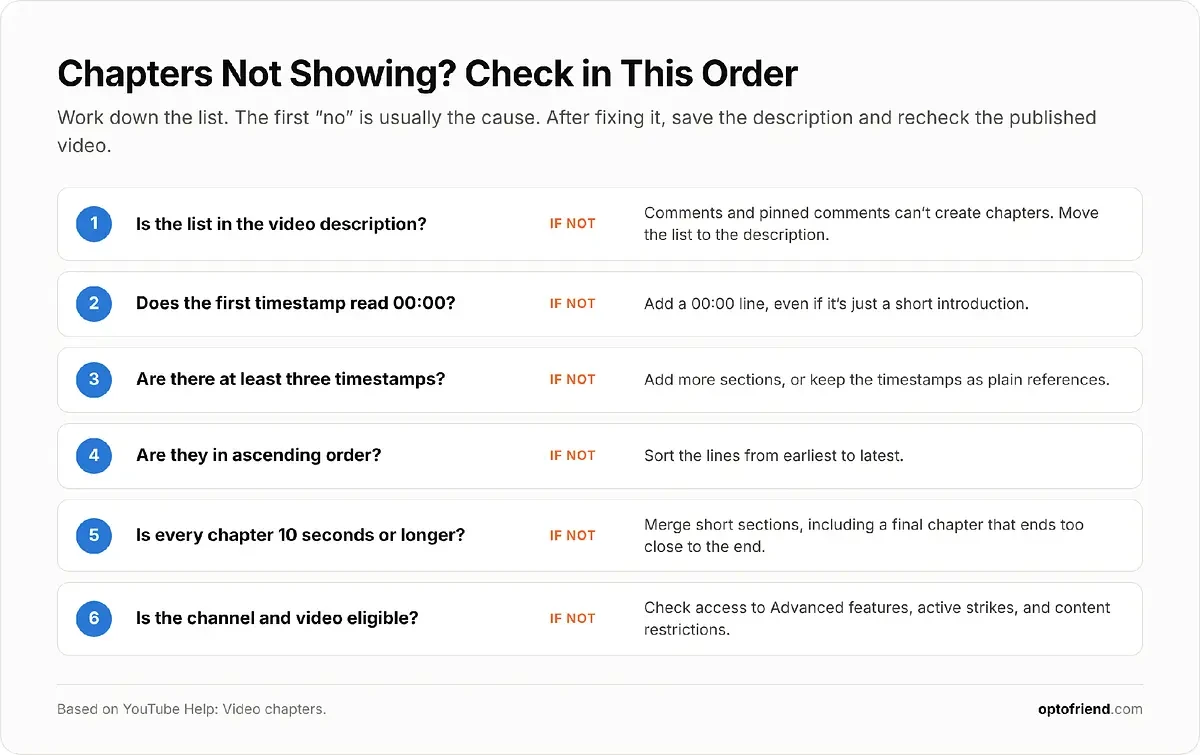
First, separate two situations. A timestamp can be clickable without creating chapters: YouTube turns any valid time in a description into a link, even if the list as a whole doesn’t meet the chapter rules. If your timestamps are clickable but the progress bar isn’t divided, the problem is the list or eligibility, not the format of individual times.
Problem |
Possible Cause |
What to Do |
|---|---|---|
Chapters do not appear |
First timestamp is missing |
Start the list with 00:00 |
Chapters do not appear |
Fewer than three timestamps |
Add at least three valid chapters |
Chapters are not recognized |
Sections are too short |
Make sure each chapter lasts at least 10 seconds |
Chapters are not recognized |
Timestamps are out of order |
Arrange them chronologically |
Wrong sections are displayed |
Timecodes are inaccurate |
Review the video and correct the timecodes |
Unexpected chapter titles |
Automatic chapters were used |
Add a valid manual chapter list |
Feature is unavailable |
Channel or video eligibility issue |
Check eligibility and Advanced features |
Automatic chapters are missing |
YouTube did not generate them |
Add manual chapters |
Check Your Video and Channel Eligibility
If you can’t use chapters at all, your channel may need access to YouTube’s Advanced features, which you can request in YouTube Studio under Settings > Channel > Feature eligibility. According to YouTube, chapters aren’t available on channels with active strikes or for content that may be inappropriate for some viewers.
Even eligible videos aren’t guaranteed to receive automatic chapters. Check the video’s settings, and if something still doesn’t add up, consult YouTube’s Help documentation on video chapters.
Check Timestamp Formatting and Placement
Most chapter problems come down to the list itself. Make sure:
Every time uses a valid format, such as 05:15 or 1:05:30.
The lines are in chronological order.
The first entry is 00:00.
Each timestamp has a clear chapter title.
There are at least three valid entries.
Each chapter, including the last, lasts at least 10 seconds.
Also confirm that the list is in the description: a list in a comment, even a pinned one, doesn’t create chapters. After any correction, save and recheck the published video.
Frequently Asked Questions About YouTube Timestamps
Can You Add Timestamps to an Existing YouTube Video?
Yes. Open the video in YouTube Studio, add or edit the chapter list in the description, and save. You don’t need to re-upload the video, and the change applies to the existing upload with its views and comments intact.
How Many Timestamps Do You Need for YouTube Chapters?
At least three, starting at 00:00, with each chapter lasting at least 10 seconds. Beyond that minimum, there’s no ideal number for every video. Let the structure of the content decide: add a chapter where the subject genuinely changes.
Can You Add Timestamps to YouTube Shorts?
Referencing a moment in a Short and giving it chapter navigation are different things. YouTube’s chapter workflow is designed for regular videos with a standard progress bar, so don’t assume a chapter list in a Short’s description will work the way it does on a long-form video.
Can You Add Timestamps Without YouTube Studio?
Yes, for individual moments. Anyone can mention a time in a comment or share a timestamped link without opening Studio. To add or manage a manual chapter list in your own video’s description, creators normally use YouTube Studio on desktop or in the mobile app.
Do YouTube Timestamps Improve SEO?
They can help indirectly. Timestamps describe the sections of a video and may support Google’s Key Moments presentation in search results. On their own, though, they don’t guarantee better rankings, more views, or inclusion in any special search feature.
Can You Change Timestamps After Publishing?
Yes. Edit the timestamp list in the video description, save the changes, and then open the published video to confirm the chapters updated as expected. You can do this as often as you need, for example after fixing an inaccurate boundary.
How To Use YouTube Video Timestamps Generator From Optofriend
Finding chapter boundaries by hand means watching the whole video and noting every transition. The YouTube video timestamps generator from Optofriend speeds this up: it takes a YouTube video URL and uses the video’s available transcript and chapter context to produce a structured list of timestamps.
Step 1. Paste Your YouTube Video URL
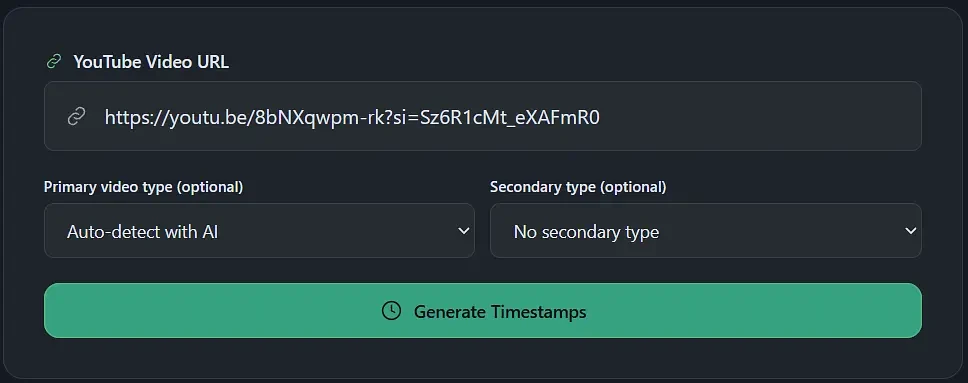
Open the generator and find the field labeled YouTube Video URL. Copy the link to your video and paste it into the field.
Use a valid public YouTube video URL. The tool works from an existing video, so you need an uploaded video of your own or another accessible public video to analyze.
Step 2. Choose the Video Type
Below the URL field are two optional settings:
Primary video type (optional)
Secondary type (optional)
Select the options that match your video’s content and format to give the generator extra context for the chapter structure. Both fields are optional, so you can also leave them empty.

Step 3. Generate the Timestamps
Click Generate Timestamps. Optofriend processes the video’s available transcript and chapter context to identify meaningful sections, so you don’t have to locate every boundary and write every title by hand.
Processing time depends on the video, and not every public video can be processed.
Step 4. Review the Generated Chapters
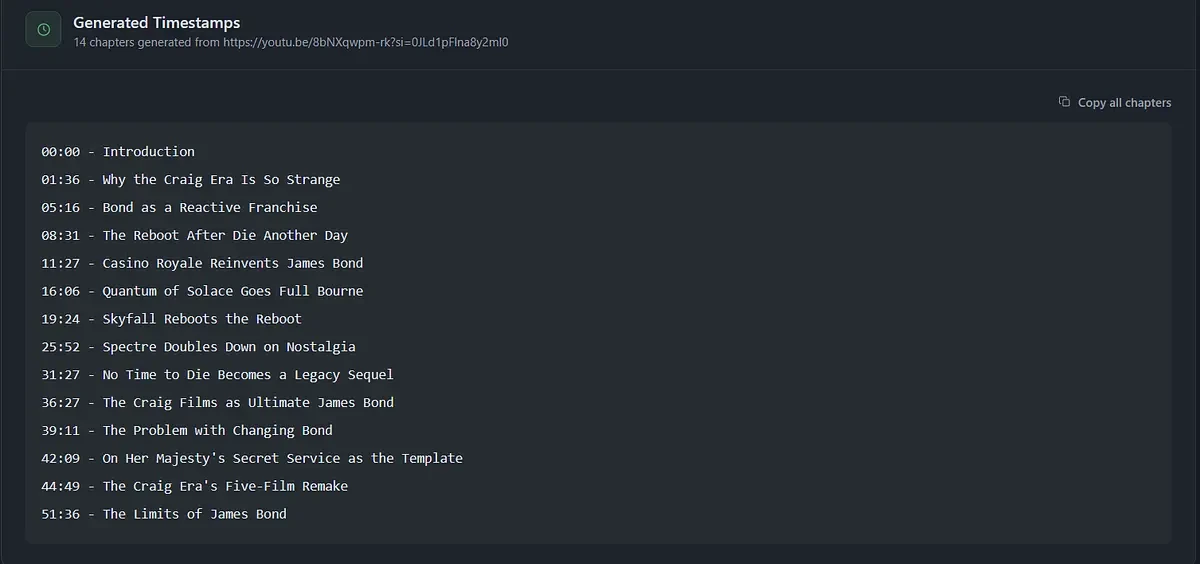
Generated timestamps are a draft, so review them before publishing. Check:
Whether each timestamp matches the correct moment.
Whether all important sections are represented.
Whether the chapter titles accurately describe their content.
Whether the list follows YouTube’s chapter requirements.
Whether the first chapter begins at 00:00.
Open the source video and jump to a few of the generated times to check the transitions. If a line needs fixing, correct it in a text editor before adding the list to YouTube.
Step 5. Copy the Timestamps to YouTube Studio
The generated list is meant to go into your video description:
Copy the generated timestamp text.
Open YouTube Studio.
Select Content.
Open the video.
Paste the timestamp list into the Description field.
Save the changes.
Remember that the pasted list still has to meet YouTube’s chapter requirements to become manual chapters.
Step 6. Check the Published Video
After saving, open the video on YouTube and:
Confirm that the chapter divisions appear on the progress bar.
Test several chapters by clicking them.
Compare the chapter labels with the actual content.
Correct any inaccurate timecodes or section names.
This final check matters even with a generated list. Still, Optofriend turns an existing video into a structured, ready-to-use chapter list without you rewatching it from start to finish, so your time goes into refining chapters instead of hunting for transitions.
Conclusion
Timestamps help you organize videos, point viewers to the most useful sections, and make long content much easier to navigate. Just remember that a clickable timestamp and a set of video chapters aren’t the same: only a valid list in the description divides the video into sections.
You can write that list yourself in YouTube Studio, or use a tool to generate a chapter list and then review it before publishing. Either way, follow YouTube’s requirements, write clear titles, and check that every chapter lands where it should.
Pick one of your existing videos, add a chapter list today, and see how much easier it becomes to navigate.