
Most creators spend hours on the title and thumbnail, then paste a quick line or two into the description and hit publish. That’s a missed opportunity. The description is where you explain what the video covers, point viewers to the resources you mentioned, and give YouTube extra text to understand the topic.
A good description doesn’t need to be long or stuffed with keywords. It needs to be clear, accurate, and organized so viewers can find what they’re looking for.
In this guide, you’ll learn what to write, how to structure a description, where keywords belong, and what to leave out. We’ll use one example video, “How to Cook Sweet Potatoes,” throughout, and back up the advice with YouTube’s official documentation and an analysis of 486 top-ranking videos.
What Is a YouTube Video Description?
A YouTube video description is the text displayed below a video on its watch page. Viewers see the first few lines right away and can expand the rest by clicking “...more.” Parts of it can also appear in search results.
A description does three jobs:
It describes the content. It tells viewers what the video covers and adds context that doesn’t fit in the title.
It helps YouTube understand the topic. According to YouTube’s tips for video descriptions, descriptions tell both the YouTube algorithm and your viewers what the video is about.
It gives viewers somewhere to go next. Timestamps, related videos, resources, and links all live in the description.
It’s also worth separating two kinds of text. The video-specific description is written for one video and explains that video. Reusable channel information, such as your social links, business email, or a standard disclaimer, can be added automatically to every upload through upload defaults in YouTube Studio. Upload defaults save time, but they should support the video-specific part, not replace it.
YouTube descriptions can be up to 5,000 characters long. That’s a maximum, not a target. As you’ll see later, the median top-ranking description in our sample is around 1,500 characters, and length showed no relationship with views.
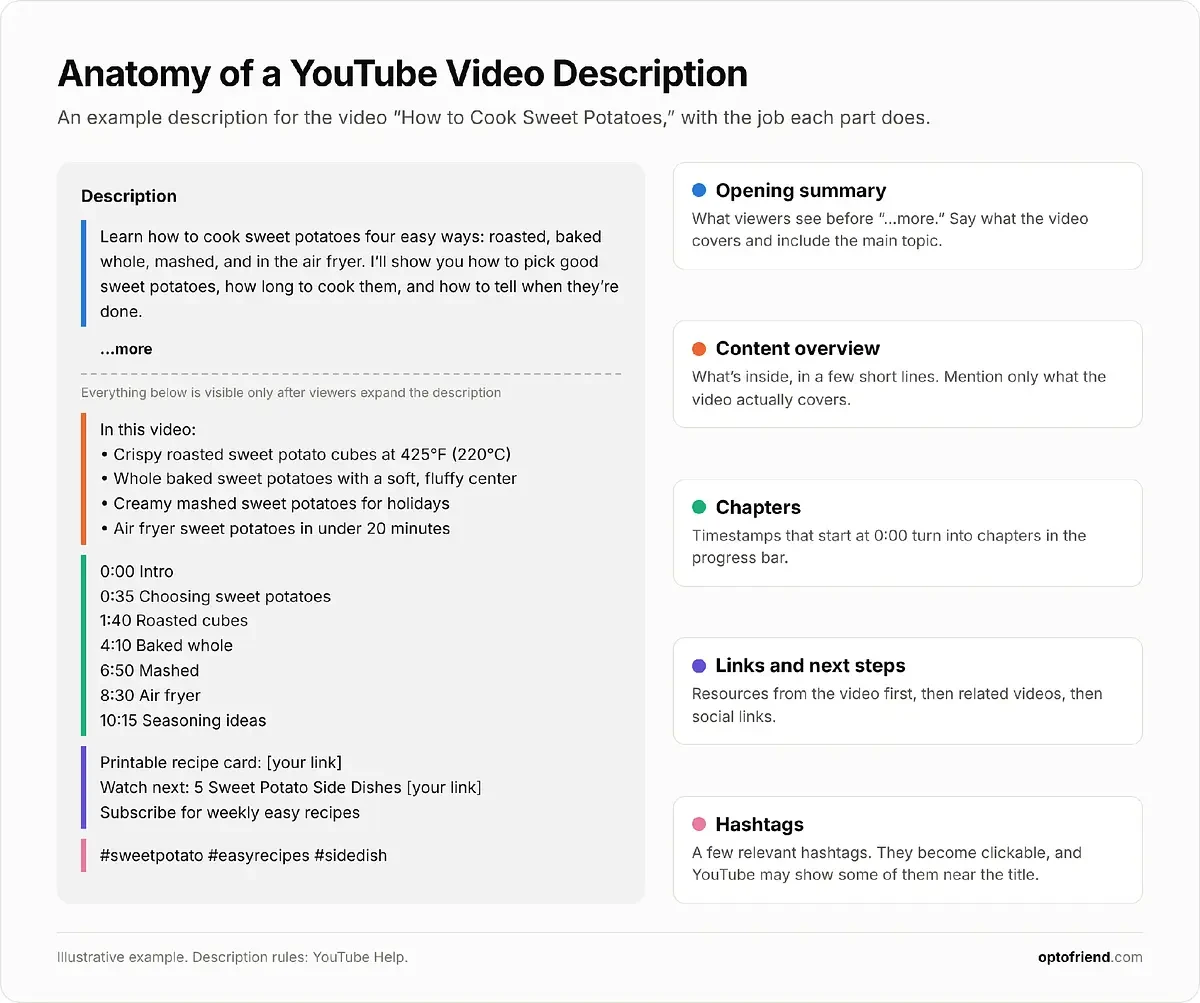
Here’s what a complete description looks like, using our example video:
Why Are YouTube Descriptions Important for SEO?
Descriptions matter for viewers and for discovery, but it’s important to separate what YouTube has actually confirmed from what is commonly assumed in SEO advice.
Confirmed by YouTube |
Commonly assumed, not confirmed |
|---|---|
Descriptions tell YouTube and viewers what the video is about (source). |
Longer descriptions rank higher. |
The description is one of the factors YouTube uses to estimate relevance in search, alongside the title, tags, and video content (source). |
There’s an ideal keyword density or minimum word count. |
A unique description for each video makes it easier to find through search and helps it stand out from similar videos (source). |
Keywords in the first X characters get extra ranking weight. |
Timestamps in the description can create chapters (source). |
More links or hashtags boost rankings. |
Hashtags in the description become clickable and link to a results page of videos with the same hashtag (source). |
Repeating the keyword helps YouTube “get it.” |
In practice, a description supports discovery in five ways:
Keyword relevance. The words in your description help YouTube match the video with relevant searches, especially terms that don’t fit into the title.
Helping viewers decide. The opening lines confirm what the video covers before someone commits their time.
Navigation. Chapters let viewers jump to the part they need, which is especially helpful in longer tutorials.
Next steps. Links to resources, related videos, and playlists keep viewers moving to the content they need.
Supporting the rest of your metadata. The title gets the click, tags cover variations, and the description fills in the details. For more on how these fit together, see our YouTube video tags guide and YouTube title best practices guide.
What a description won’t do is guarantee views or rankings on its own. A long description doesn’t outperform a short, useful one. In our analysis of 486 top-ranking videos, description length showed no meaningful relationship with views within the same search. The title, thumbnail, and the video itself still do most of the work.
Where to Find and Edit YouTube Video Descriptions
You can add a description while uploading a video or edit it at any time after publishing. To edit an existing description:
Open YouTube Studio.
Select Content from the left menu.
Click the video you want to edit (or the pencil icon next to it).
Find the Description field under Details.
Add or update the text and click Save.
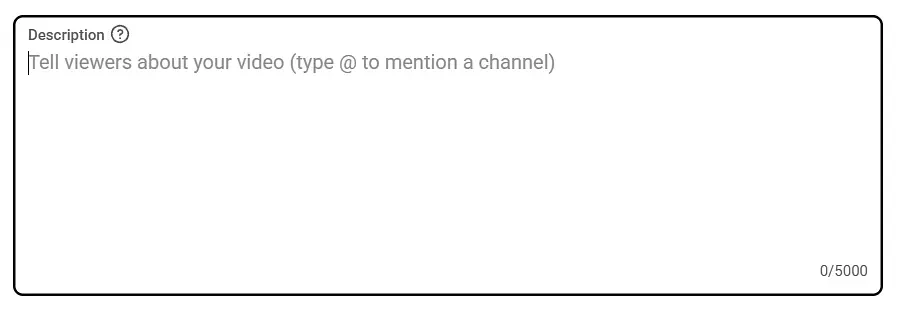
Changes are applied right after you save, so you can fix mistakes, update links, or add chapters to older videos whenever you need to.
While you write, keep in mind that viewers don’t see the whole description at once. YouTube suggests thinking of it as two parts: what viewers see before they click “Show more” on desktop or “more” on mobile, and what they see after. The first part is what most people read, so it should carry the most important information. YouTube also recommends checking how your description appears in search, on the watch page, and on different devices.
To set reusable text for every new upload, go to Settings → Upload defaults in YouTube Studio and fill in the description there. Keep it to information that’s true for every video, like your social links or a standard disclaimer.
How to Write a Good YouTube Video Description
A good description has a few building blocks, each with its own job. Not every video needs all of them, but most descriptions follow this order: summary, details, chapters, links, and hashtags.
Start With a Clear Summary of Your Video
The first one or two sentences matter most, because they’re what viewers see before expanding the description. YouTube recommends using the first few lines to describe your video. A strong opening:
Says what the viewer will learn or see.
Includes the main topic naturally.
Puts the most useful information first.
Avoids generic introductions and exaggerated promises.
Makes sense even without reading the title.
Here’s the difference for our example video, “How to Cook Sweet Potatoes”:
Weak opening:
Hey guys, welcome back to my channel! In today’s video we’re doing something a little different, so make sure you watch until the end and don’t forget to subscribe!
Improved opening:
Learn how to cook sweet potatoes four easy ways: roasted, baked whole, mashed, and in the air fryer. I’ll show you how long each method takes and how to tell when they’re done.
The weak version tells viewers nothing about the video. The improved one names the topic, lists what’s covered, and promises something specific and realistic.
Add Relevant Keywords Naturally
Optimizing a description isn’t about inserting a keyword as many times as possible. It’s about describing the video in the words people actually use to search for it. YouTube itself notes that writing descriptions with keywords can help viewers find your videos through search.
Think of your keywords in three groups:
Main keyword: the phrase that best describes the video and has the most demand, such as “how to cook sweet potatoes.” Use it in the title and once in the opening of the description.
Supporting keywords: related phrases that describe parts of the video, such as “roasted sweet potatoes” or “air fryer sweet potatoes.” Use them where they fit naturally, like the content overview or chapter titles.
Variations: synonyms, alternative names, and misspellings, such as “sweet potato recipes” or “yams.” Variations that would sound awkward in a sentence belong in tags.
The title, description, and tags each carry a different part of the list:
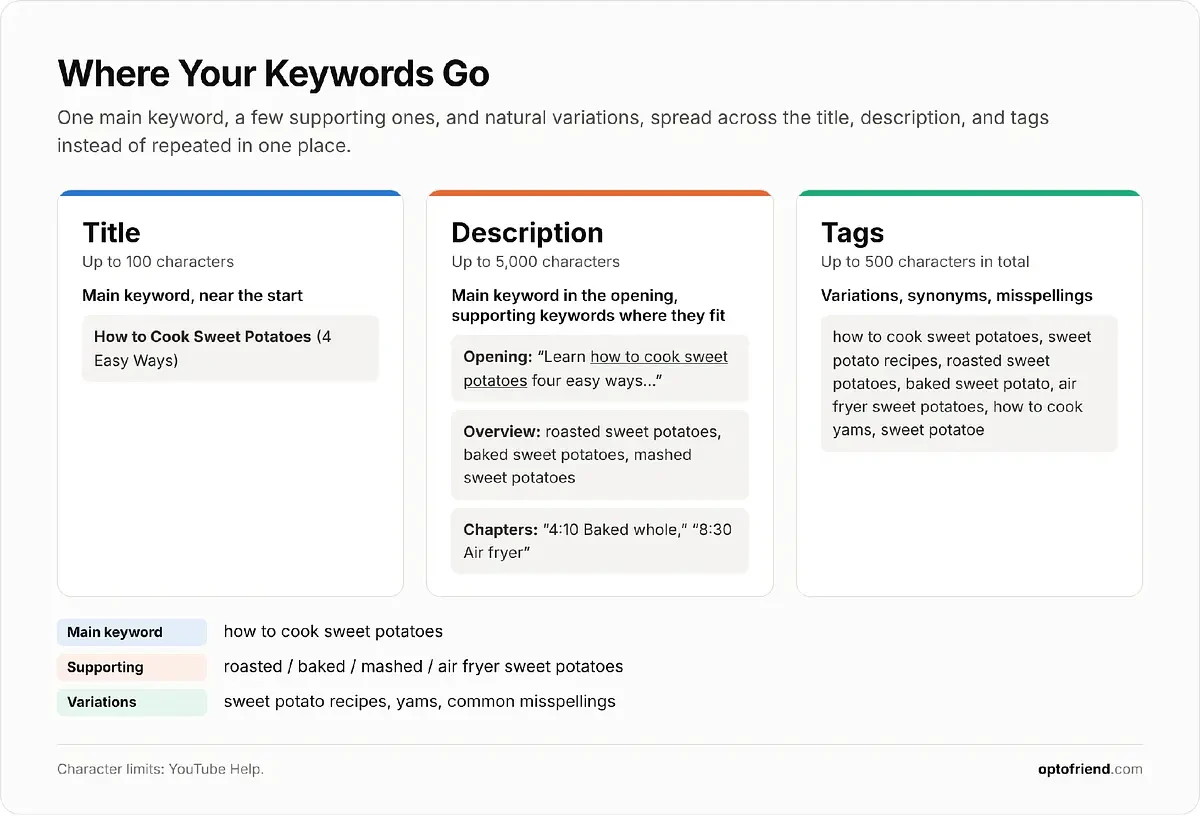
Notice that in the full example description, the main keyword appears once in the opening, and the supporting keywords appear in the overview and chapter titles. No phrase is repeated just for the sake of repetition.
Describe What Viewers Can Expect
After the opening, expand the summary into a short overview of what the video covers: the main steps, topics, products, tools, or outcomes. A short list is often easier to scan than a paragraph.
Compare these two versions:
Keyword-heavy, not useful:
How to cook sweet potatoes. Sweet potatoes recipe. Best sweet potatoes. Cook sweet potatoes easy. How to cook sweet potatoes in oven. Sweet potatoes how to cook.
Useful:
In this video:
• Crispy roasted sweet potato cubes at 425°F (220°C)
• Whole baked sweet potatoes with a soft, fluffy center
• Creamy mashed sweet potatoes for weeknights and holidays
• Air fryer sweet potatoes in under 20 minutes
The first version gives viewers nothing and reads like spam. In fact, YouTube’s hashtag policy specifically prohibits adding ordinary descriptive tags or repetitive sentences to a description. The second version uses the same keywords, but every line tells the viewer something.
Above all, the description must match the video. Don’t mention methods, products, or topics the video doesn’t cover just because they’re popular searches. Viewers who don’t find what was promised leave, and misleading metadata can violate YouTube’s policies.
Add Timestamps and Video Chapters
Timestamps let viewers jump to specific parts of the video. When they follow YouTube’s rules, they also become chapters that appear in the video’s progress bar. They’re most useful for tutorials, reviews, lessons, and any video longer than a few minutes with clearly separate sections.
According to YouTube’s chapter guidelines, your timestamp list needs to meet three requirements:
The first timestamp must start at 0:00.
There must be at least three timestamps, listed in ascending order.
Each chapter must be at least 10 seconds long.
Put each timestamp on its own line, followed by a short chapter title. Here’s the chapter list for our cooking tutorial:
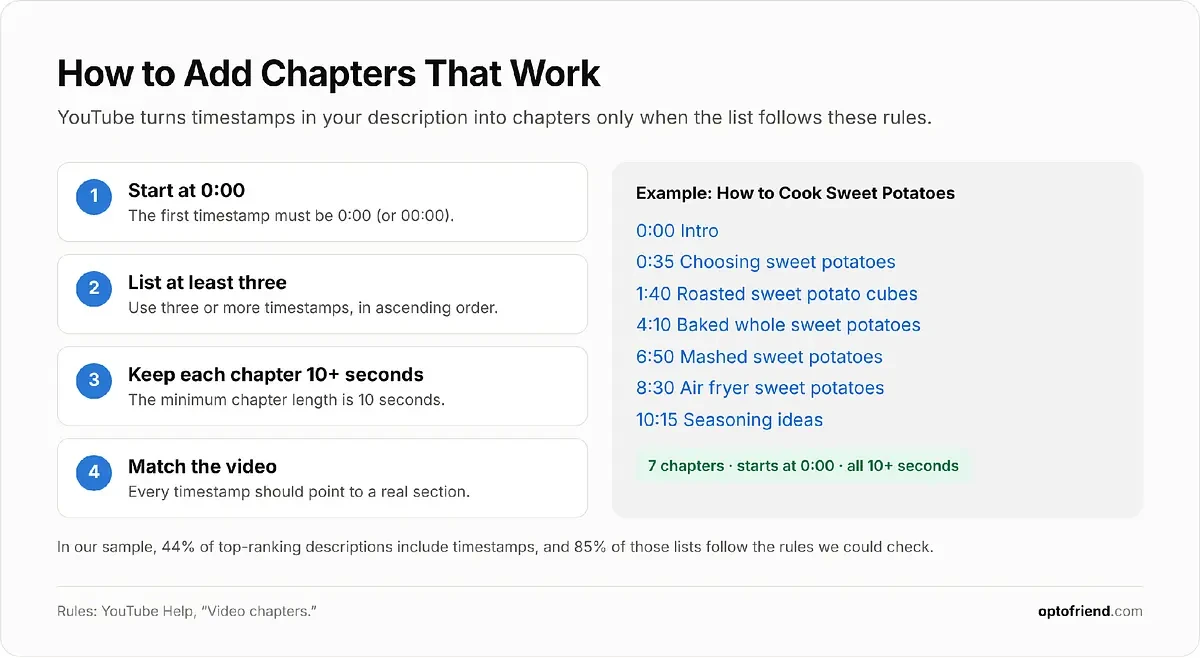
Every timestamp has to correspond to a real section of the video. Chapter titles are also a natural place for supporting keywords, like “Air fryer sweet potatoes,” as long as they describe the section accurately.
Include Useful Links and Calls to Action
Links are one of the most useful parts of a description, but only when they help the viewer. Depending on the video, consider adding:
Related videos and playlists that continue the topic.
Websites and product pages for what you mentioned or reviewed.
Tools and resources used in the video, like a recipe card, template, or worksheet.
Social media and channel links, usually lower in the description or added through upload defaults.
Affiliate links with a clear disclosure.
A call to action, such as subscribing or watching the next video in a series.
Order links by how useful they are for this specific video. Resources mentioned in the video come first, then related videos, then general channel links. Avoid opening the description with a block of links: the first lines are better spent describing the video.
If a link earns you money or the video contains a sponsorship, disclose it. YouTube requires you to tell it about paid promotions by checking the paid promotion box in your video details, and some jurisdictions and brand partners require you to tell viewers about commercial relationships as well. Put the disclosure where viewers will see it, not at the very end of a long description.
Long-form videos and Shorts handle links differently. According to YouTube, URLs placed in Shorts descriptions and comments aren’t clickable, to reduce spam and scam attempts. In Shorts, use the description for context and point viewers to your channel links or a related video instead.
Use Relevant Hashtags
Hashtags and tags are different things. Tags are hidden keywords entered in a separate field in YouTube Studio. Hashtags are words with a # symbol that you add to the title or description. They’re visible and clickable: viewers who click one see a results page with other videos that use the same hashtag.
Keep hashtags few and relevant. YouTube’s hashtag policy says the more hashtags you add, the less relevant they become for people searching, and if a video has more than 60 hashtags, YouTube ignores all of them. Misleading or unrelated hashtags can also get a video removed. For our cooking tutorial, three hashtags are enough:
#sweetpotato #easyrecipes #sidedish
Two or three specific hashtags describe the video better than a long list of generic ones.
YouTube Video Description Examples and Templates
The examples below show how the same building blocks adapt to different types of videos. Treat them as starting points, not formulas: replace the bracketed parts and remove anything your video doesn’t need.
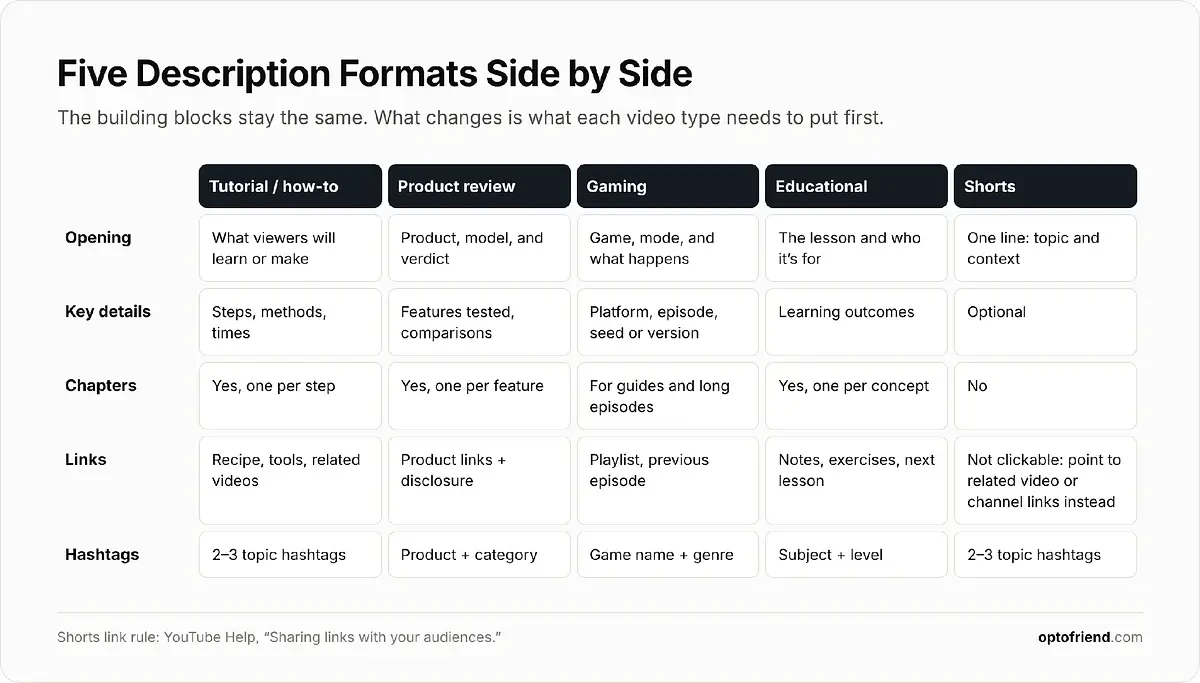
Tutorial and How-To Video Description
Here’s the complete description for our running example, “How to Cook Sweet Potatoes”:
Learn how to cook sweet potatoes four easy ways: roasted, baked whole, mashed, and in the air fryer. I’ll show you how to pick good sweet potatoes, how long each method takes, and how to tell when they’re done.
In this video:
• Crispy roasted sweet potato cubes at 425°F (220°C)
• Whole baked sweet potatoes with a soft, fluffy center
• Creamy mashed sweet potatoes for weeknights and holidays
• Air fryer sweet potatoes in under 20 minutes
Chapters:
0:00 Intro
0:35 Choosing sweet potatoes
1:40 Roasted sweet potato cubes
4:10 Baked whole sweet potatoes
6:50 Mashed sweet potatoes
8:30 Air fryer sweet potatoes
10:15 Seasoning ideas
Printable recipe card with all four methods: [your link]
Watch next: 5 Easy Sweet Potato Side Dishes [your link]
New easy recipes every week. Subscribe so you don’t miss the next one.
#sweetpotato #easyrecipes #sidedish
Why each part is there:
Opening: names the topic and the four methods, so viewers know right away whether the video has what they need.
Overview: lists the methods with useful details (temperature, timing) and naturally includes supporting keywords.
Chapters: start at 0:00, follow the video’s structure, and let viewers skip straight to one method.
Resources: the recipe card is mentioned in the video, so it’s the first link. The related video comes next.
Call to action and hashtags: one short subscribe line and three relevant hashtags at the end.
Product Review Description
For a consumer electronics review, viewers want the product name, what you tested, how it compares, and where to buy it.
I spent [two weeks] testing the [Brand Model] noise-cancelling headphones to see if they’re worth [price]. Here’s how the noise cancelling, battery life, comfort, and call quality hold up in daily use, and how they compare to the [Competitor Model].
What I tested:
• Noise cancelling on a flight and in a busy office
• Battery life from full charge to empty
• Comfort during long listening sessions
• Microphone quality on calls
Chapters:
0:00 Verdict in 30 seconds
0:30 Design and comfort
2:15 Noise cancelling
4:40 Battery life
6:05 Call quality
7:30 [Brand Model] vs [Competitor Model]
9:10 Who should buy them
Where to buy (affiliate links, I may earn a commission at no extra cost to you):
[Brand Model]: [link]
[Competitor Model]: [link]
#headphones #techreview
The disclosure sits right above the affiliate links, the chapters match the features tested, and the comparison model is named in both the opening and the chapters.
Gaming Video Description
Gaming descriptions should name the game, the context (series, episode, mode), and the platform or version, which matters a lot for guides.
Minecraft survival guide for beginners, episode 1: everything you need to get through your first day and night. We’ll punch trees, craft basic tools, find food, and build a simple shelter before the mobs come out.
Playing on: [Java/Bedrock Edition, version]
Seed: [seed number]
Chapters:
0:00 Starting a new world
1:20 Wood and crafting table
3:45 First tools
6:10 Finding food
8:30 Building a shelter
11:00 Surviving the first night
Full survival series playlist: [link]
Next episode: Mining for iron [link]
#minecraft #minecraftsurvival
The version and seed help viewers follow along, and the playlist link keeps a series together.
Educational Video Description
Educational descriptions should summarize the lesson, state the learning outcomes, and point to supporting materials.
Photosynthesis explained in 10 minutes. This lesson covers how plants turn light, water, and carbon dioxide into glucose and oxygen, and what happens in the light-dependent reactions and the Calvin cycle.
By the end of this video, you’ll be able to:
• Write the overall equation for photosynthesis
• Explain the role of chlorophyll and chloroplasts
• Describe the two stages of photosynthesis
Chapters:
0:00 What is photosynthesis?
1:30 The photosynthesis equation
3:10 Chloroplasts and chlorophyll
5:00 Light-dependent reactions
7:20 The Calvin cycle
9:15 Quick review
Free worksheet and answer key: [link]
Next lesson: Cellular respiration [link]
#biology #photosynthesis
Learning outcomes help students decide whether the lesson matches what they need, and the worksheet link adds value beyond the video.
YouTube Shorts Description
Shorts descriptions can be much shorter: a line of context and a few relevant hashtags.
Crispy air fryer sweet potato fries with just 3 ingredients. 400°F (200°C) for about 15 minutes, shaking halfway. Full four-method tutorial is on my channel.
#sweetpotato #airfryer #shorts
Since URLs in Shorts descriptions aren’t clickable, this example doesn’t include one. Instead, it points viewers to the full tutorial on the channel, which you can connect through your channel links or a related video.
YouTube Description Dos and Don’ts
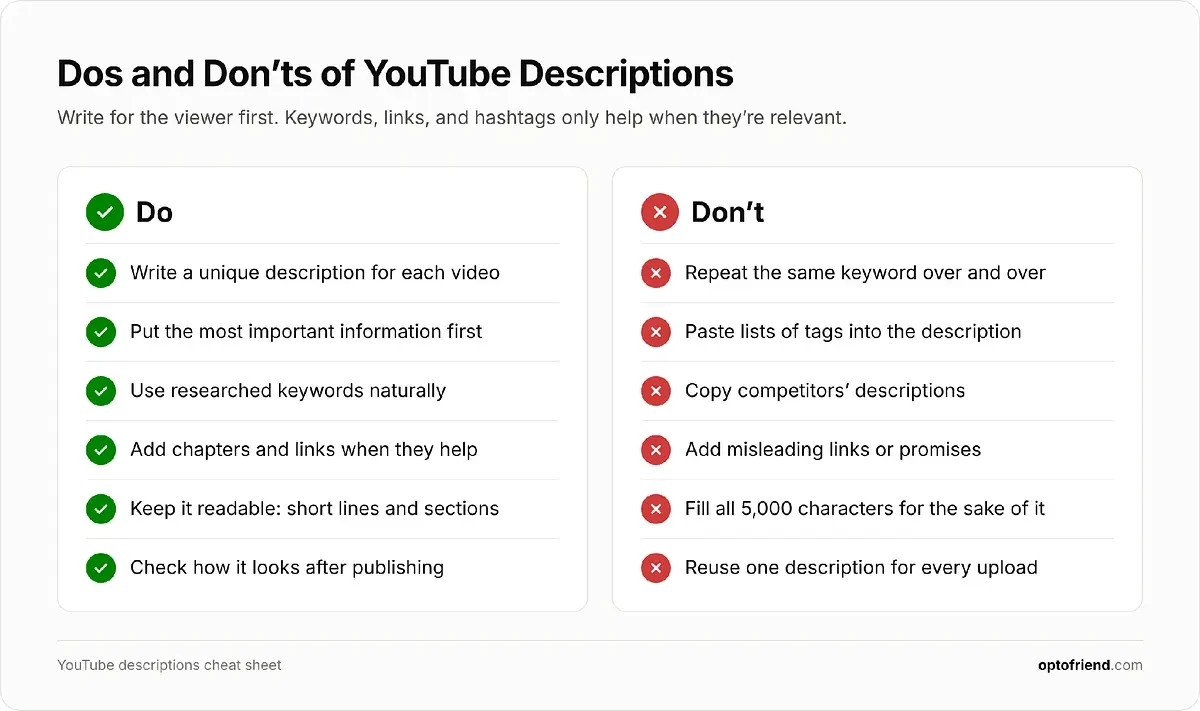
Dos:
Make each description relevant to its video. YouTube recommends a unique description for every video, because it makes the video easier to find and helps it stand out from similar ones.
Put important information near the beginning. Most viewers only read what’s visible before “...more.”
Use researched keywords naturally. Keywords help YouTube and viewers understand the topic only when they read like normal sentences.
Include helpful chapters and links when appropriate. Chapters help viewers navigate, and relevant links give them a next step.
Keep descriptions readable and organized. Short paragraphs, simple lists, and clear sections are easier to scan, especially on mobile.
Check descriptions after publishing. Make sure the opening shows up the way you want and that every link works.
Don’ts:
Don’t stuff descriptions with repetitive keywords. It makes the description unreadable and adds nothing for viewers or for YouTube.
Don’t paste lists of unrelated tags into the description. YouTube’s policies prohibit adding ordinary descriptive tags or repetitive sentences to descriptions, and its tag documentation notes that adding excessive tags to a description is against its spam policies.
Don’t copy competitors’ descriptions. Learn from their structure, but a copied description won’t match your video and won’t stand out.
Don’t add misleading links or promises. Viewers who feel misled leave, and misleading metadata can break YouTube’s rules.
Don’t fill all 5,000 characters for the sake of it. Length isn’t a goal. Extra text that nobody reads only buries the useful parts.
Don’t use the same video-specific description for every upload. Reusable channel information is fine. The part that describes the video should be unique.
What Can We Learn From Competitors’ YouTube Descriptions?
To see what top-ranking descriptions look like in practice, we analyzed the descriptions of 486 unique videos: the top 10 YouTube search results for 50 keywords across 10 niches, from gaming and cooking to personal finance and skincare. This is the same dataset we used in our YouTube title best practices guide.
For each description, we measured length, whether a keyword word appears in the first 150 characters, whether the opening starts with a link or promotion, and the presence of timestamps, links (by type), hashtags, subscribe or engagement calls to action, disclosure wording, and text repeated across videos. Detection was automatic, so treat the numbers as close estimates rather than exact counts.
Niche |
Median length (characters) |
Keyword word in first 150 characters |
Opens with a link or promo |
Time-stamps |
Shopping or affiliate links |
Hash-tags |
Disclosure wording |
|---|---|---|---|---|---|---|---|
Gaming |
988 |
78% |
24% |
50% |
10% |
70% |
14% |
Consumer tech |
1,381 |
80% |
46% |
40% |
60% |
28% |
62% |
AI & software |
1,452 |
84% |
44% |
52% |
26% |
54% |
38% |
Education & study |
1,527 |
64% |
40% |
47% |
7% |
40% |
9% |
Personal finance |
1,826 |
65% |
45% |
37% |
12% |
24% |
45% |
Business |
1,510 |
76% |
37% |
45% |
18% |
35% |
18% |
Marketing & SEO |
1,887 |
80% |
64% |
50% |
4% |
48% |
12% |
Fitness |
1,693 |
74% |
46% |
24% |
26% |
32% |
18% |
Cooking |
1,143 |
80% |
22% |
40% |
38% |
34% |
18% |
Beauty & skincare |
2,080 |
70% |
23% |
53% |
63% |
44% |
49% |
All niches |
1,500 |
75% |
39% |
44% |
26% |
41% |
28% |
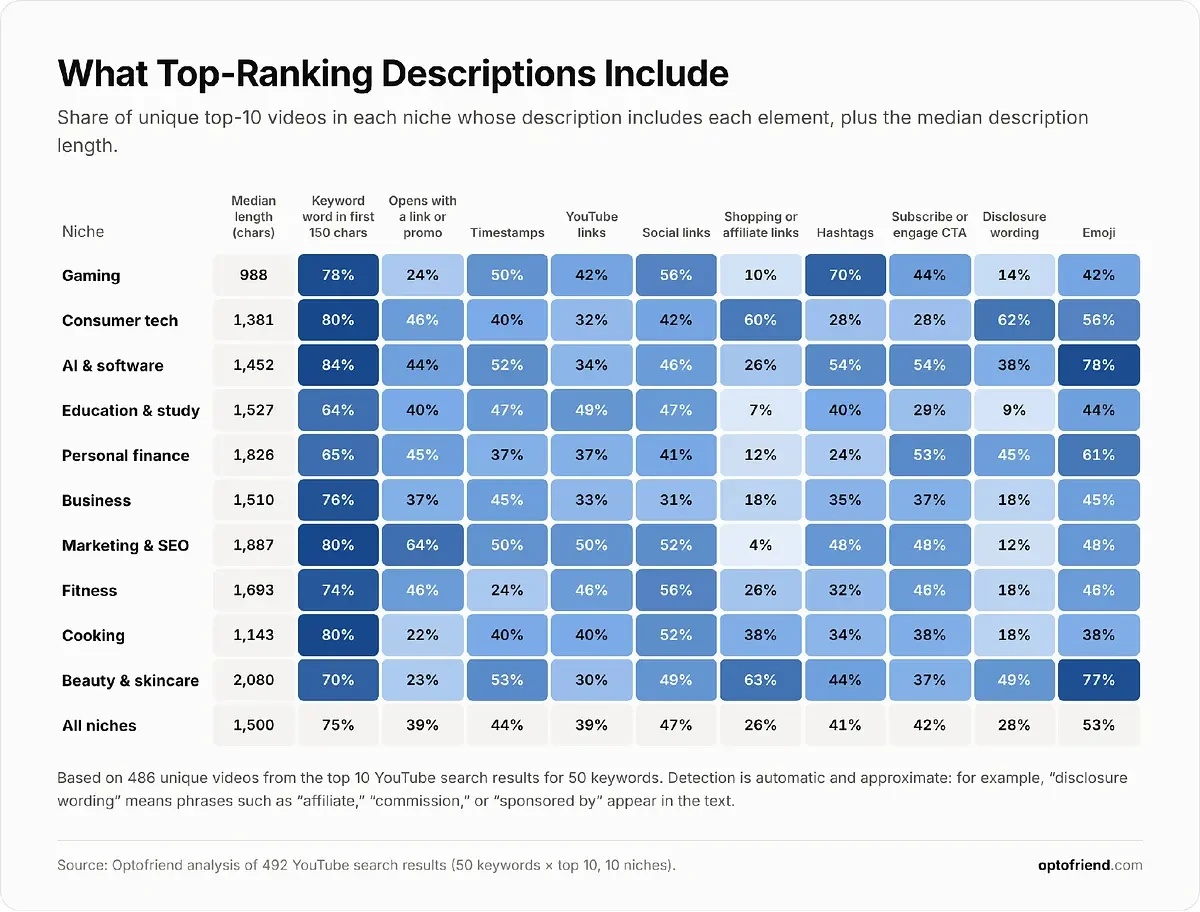
What stands out:
Most top descriptions are moderate in length. The median is 1,500 characters (about 200 words), and half fall between roughly 860 and 2,360. Only 14 of 486 come close to the 5,000-character limit, and 24 are under 300 characters.
Length doesn’t go with views. Within the same search, longer descriptions didn’t have more views than shorter ones (correlation 0.05, essentially zero). This doesn’t prove descriptions don’t matter, only that length alone isn’t what separates top videos.
The topic usually comes first. 75% of descriptions mention a word from the search keyword in the first 150 characters.
Many openings are spent on promotions. 39% of descriptions have a link or promotion in the first 150 characters, from sponsor messages to course offers. In marketing and SEO, it’s 64%. Cooking (22%) and beauty (23%) creators are the most likely to open by describing the video.
Timestamps are common but not universal. 44% of descriptions include timestamps, and 85% of those lists follow the chapter rules we could check (starting at 0:00, at least three, at least 10 seconds apart). Fitness uses them least (24%).
Links depend on the niche. 89% of descriptions contain at least one link, with a median of six. Shopping and affiliate links are common in beauty (63%) and consumer tech (60%) but rare in marketing (4%) and education (7%). 39% link to other YouTube videos, playlists, or channels.
Hashtags are used sparingly, with exceptions. 41% of descriptions use hashtags, typically three. Gaming leads with 70%. Two descriptions in the sample use more than 60 hashtags (63 and 119), which means YouTube ignores all of them.
Reusable text is everywhere. 34% of descriptions share at least one line with another video in the sample, usually channel boilerplate like social links, gear lists, or business contacts. Since we only see a few videos per channel, the real share is likely higher.
Disclosures follow the money. Disclosure wording like “affiliate” or “sponsored by” appears in 62% of consumer tech and 49% of beauty descriptions, the two niches with the most shopping links.
What’s worth learning from competitors:
Lead with what the video covers, the way most top descriptions do.
Use chapters for tutorials and multi-part videos, and follow the format rules so they actually work.
Link to resources viewers need for this video, and to related videos that keep them watching.
Use upload defaults for channel information, so the video-specific part stays focused.
Disclose affiliate links and sponsorships clearly, close to the links themselves.
What isn’t worth copying:
Opening with sponsor messages or a block of links. It may work for large channels with sponsorship deals, but it pushes the description of your video out of view.
Long lists of hashtags. Beyond a few, they add nothing, and past 60 YouTube ignores them all.
Boilerplate that outweighs the video-specific text, such as gear lists, long link lists, or legal text longer than the actual description.
Filling the description to a target length. The data shows no link between length and views.
Step-by-Step Guide to Writing and Optimizing YouTube Descriptions
Here’s the complete manual workflow, using our sweet potato tutorial from start to finish.
Step 1: Research Keywords for Your Video
Start with the central topic, “how to cook sweet potatoes,” and find out how people search for it:
YouTube autocomplete. Type the topic into YouTube search and note the suggestions, such as “how to cook sweet potatoes in the oven” or “in the air fryer.” These are real searches.
YouTube Analytics. For an existing channel, the search terms in your traffic source reports show the words viewers already use to find your videos.
Keyword research tools. Tools that estimate search volume help you decide which variation to treat as the main keyword.
Then choose one main keyword and a handful of supporting ones. For our example:
Main keyword: how to cook sweet potatoes
Supporting keywords: roasted sweet potatoes, baked sweet potatoes, mashed sweet potatoes, air fryer sweet potatoes
Variations for tags: sweet potato recipes, how to cook yams, sweet potato side dish
Step 2: Write the Main Description
Turn the topic into a clear opening first. Ask yourself: what will viewers learn, and what makes this video useful? Then write one or two sentences that answer that, using the main keyword once:
Learn how to cook sweet potatoes four easy ways: roasted, baked whole, mashed, and in the air fryer. I’ll show you how to pick good sweet potatoes, how long each method takes, and how to tell when they’re done.
Next, add a short overview of what the video covers. This is where supporting keywords fit naturally, because each method is literally one of them:
In this video:
• Crispy roasted sweet potato cubes at 425°F (220°C)
• Whole baked sweet potatoes with a soft, fluffy center
• Creamy mashed sweet potatoes for weeknights and holidays
• Air fryer sweet potatoes in under 20 minutes
Step 3: Add Chapters, Links, and Hashtags
Now add the supplementary parts, but only the ones that help this video:
Useful for this video |
Unnecessary for this video |
|---|---|
Chapters for each of the four methods |
Timestamps for every 30 seconds of footage |
A printable recipe card mentioned in the video |
A full list of every kitchen gadget you own |
A related video on sweet potato side dishes |
Ten links to unrelated videos |
One short subscribe line |
A paragraph asking viewers to like, comment, share, and turn on notifications |
Three relevant hashtags |
Fifteen generic hashtags like #food #yummy #viral |
Step 4: Review and Publish Your Description
Before you publish, run through this checklist:
Accuracy: does everything in the description actually appear in the video?
Readability: is it easy to scan, with short paragraphs and clear sections?
Keyword relevance: does the opening include the main keyword naturally, without repetition?
Formatting: do the chapters start at 0:00, with at least three timestamps that are 10+ seconds apart?
Valid links: does every link work and point to the right page?
Character limit: is it under 5,000 characters, and is that length actually useful?
After publishing, check how the description looks on the watch page and on mobile. Over the following weeks, look at the YouTube search terms in your traffic source reports. If viewers find the video with words your description doesn’t use, or chapters show that viewers skip to one section, update the description to reflect that.
Doing all of this by hand takes time: researching keywords, rewatching the video to summarize it, organizing the content into sections, adding chapters and links, and formatting the final text. Optofriend can take care of much of that work, while you stay in control of the final version.
How to Optimize YouTube Video Descriptions With Optofriend
Optofriend’s YouTube Description Optimizer turns information about your video into a structured description with formatting, keywords, and optional hashtags and links. Below, we’ll use the same sweet potato tutorial so you can compare the result with the manual version above.
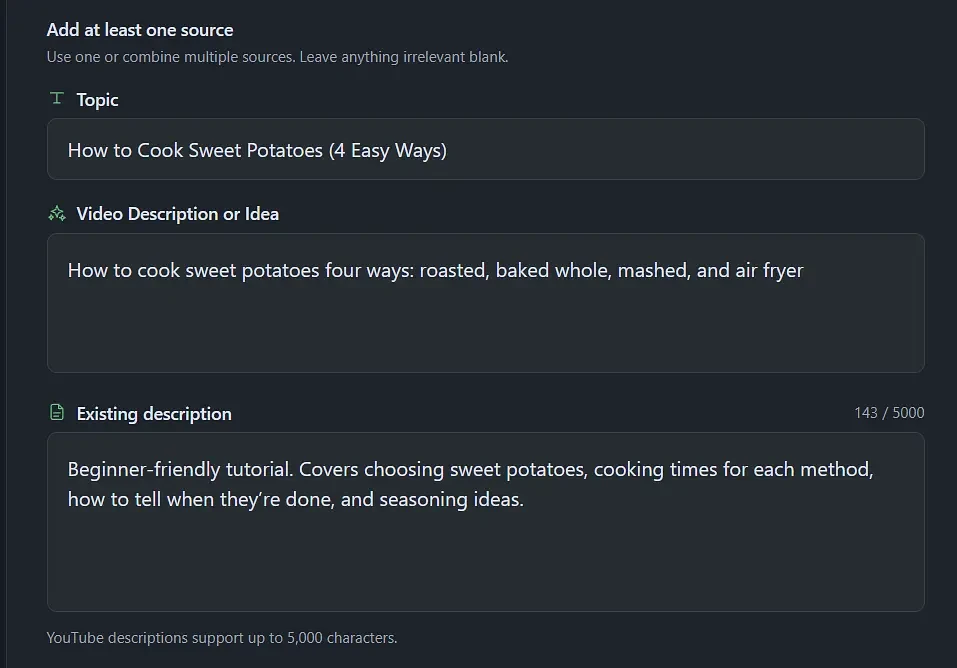
Step 1: Enter Your Video Topic, Description, or URL
Open the YouTube Description Optimizer. Under “Add at least one source,” you can use one source or combine several, and leave anything irrelevant blank:
Topic: a short description of what the video is about, or the idea for a video you haven’t made yet.
Existing description: your current description or rough notes, if you have them.
Transcript: found under “More source inputs.” Useful when you want the description to reflect exactly what’s said in the video.
Existing Video URL: also under “More source inputs,” for videos that are already on YouTube.
For our example, we’ll enter a topic and a few notes about the video:
Topic: How to cook sweet potatoes four ways: roasted, baked whole, mashed, and air fryer
Existing description (notes): Beginner-friendly tutorial. Covers choosing sweet potatoes, cooking times for each method, how to tell when they’re done, and seasoning ideas.
Step 2: Add Keywords and Optional Information
Under “Additional context (optional),” you can add a Title, Keywords, and Tags. None of these fields are required, but they help the tool produce a description closer to what you need. For our example:
Title: How to Cook Sweet Potatoes (4 Easy Ways)
Keywords: how to cook sweet potatoes, roasted sweet potatoes, baked sweet potatoes, mashed sweet potatoes, air fryer sweet potatoes
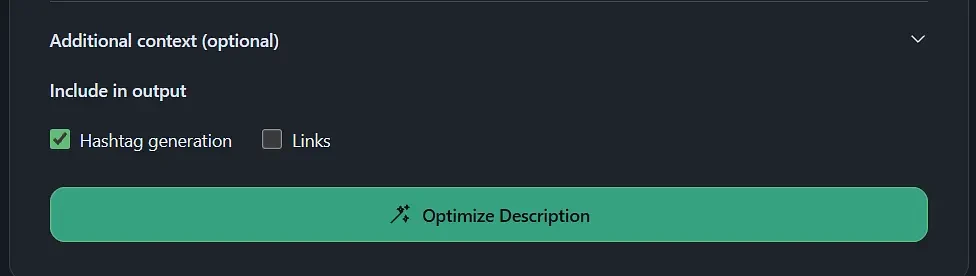
Under “Include in output,” choose what else the description should contain:
Hashtag generation: turn it on if you want hashtags added to the description.
Links: turn it on to add links by type. Each link entry has a type selector (Social Media, Affiliate Link, Mention, Product Link, Citation, or Custom Link), and “Add another link” lets you add more. The links are included in the generated description.
For the sweet potato tutorial, we’d add the printable recipe card as a Custom Link and the channel’s Instagram as a Social Media link. If you add affiliate links, remember to keep a disclosure in the final text.
Step 3: Generate Your Optimized Description
Click Optimize Description. The tool uses the information you provided to produce a structured description with relevant wording, formatting, and calls to action, so you don’t have to organize everything yourself.
Here’s the description Optofriend generated for our sweet potato tutorial:
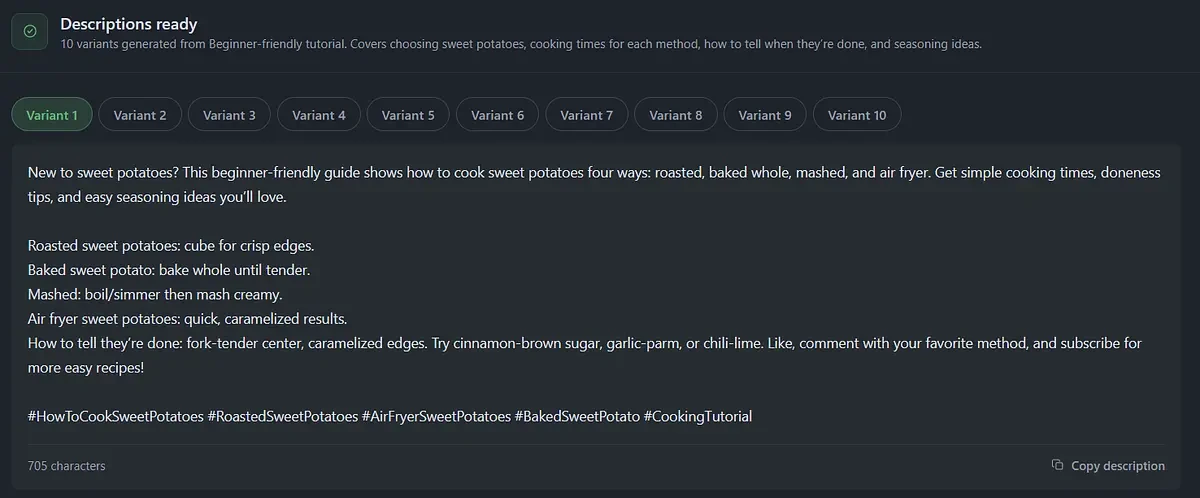
Variant 2 fits best:
|
You’ll never wonder how do you cook sweet potatoes again. In this tutorial, learn roasted sweet potatoes, baked sweet potato, mashed, and air fryer sweet potatoes—with time guides, doneness checks, and seasoning options. Start here: choose firm, smooth sweet potatoes; avoid soft spots. Roasted sweet potatoes: hot oven for caramelized edges. Baked sweet potato: whole baked for fluffy centers. Mashed: cook until very tender, then mash with butter/milk. Air fryer sweet potatoes: faster cooking with crispy edges. Done when: fork slides in easily. Seasoning ideas: olive oil + salt; cinnamon; smoked paprika; maple + butter. Tap like, share, and subscribe! #HowToCookSweetPotatoes #RoastedSweetPotatoes #AirFryerSweetPotatoes #BakedSweetPotatoesInOven #CookingTips |
Step 4: Review and Add the Description to YouTube
Treat the generated description as an editable draft, not finished content. Before publishing, check:
Does it accurately describe the video?
Are the keywords natural and relevant?
Are the links correct, and are affiliate links disclosed?
Are the hashtags appropriate for the video?
Does it sound like you and your channel?
Are any important details missing, such as chapters or a resource you mentioned?
When you’re happy with it, copy the text, open the video in YouTube Studio, paste it into the Description field, and click Save.
Optional: Add Chapters With Optofriend
If the video is already published, you can generate chapters separately with Optofriend’s YouTube Video Timestamps Generator. Paste the URL of a public YouTube video into the YouTube Video URL field, optionally choose a Primary video type (it defaults to Auto-detect with AI) and a Secondary type, and click Generate Timestamps. The tool returns timestamp lines formatted for the description. Review them against the video and YouTube’s chapter rules, then add them to your description.
Frequently Asked Questions About YouTube Descriptions
How long can a YouTube description be?
Up to 5,000 characters. That’s the maximum YouTube allows, not a recommended length. In our analysis of 486 top-ranking videos, only 14 descriptions came close to the limit.
How long should a YouTube description be?
There’s no ideal length. Write enough to describe the video, list what it covers, and include useful chapters and links. The median top-ranking description in our sample is about 1,500 characters (roughly 200 words), but length showed no relationship with views. A focused 600-character description can be better than a padded 4,000-character one.
Do YouTube descriptions help with SEO?
Yes, as one factor among several. YouTube says descriptions tell its algorithm and viewers what a video is about, and lists the description among the factors it uses to estimate relevance in search. But a description won’t make up for a weak title, thumbnail, or video.
Should I put keywords in my YouTube description?
Yes, naturally. Use the main keyword once in the opening and supporting keywords where they fit, such as in the content overview or chapter titles. Don’t repeat keywords or paste lists of them: YouTube’s policies prohibit adding descriptive tags or repetitive sentences to descriptions.
Can I use the same description for every YouTube video?
Not for the video-specific part. YouTube recommends a unique description for each video, because it helps the video get found in search and stand out from similar videos. Reusable information like social links or disclaimers is fine, and you can add it automatically with upload defaults.
Can I include links in YouTube descriptions?
Yes. Links to resources, related videos, products, and social profiles are common: 89% of the top-ranking descriptions we analyzed include at least one. Make sure links are relevant, work, and comply with YouTube’s policies, and disclose affiliate links and sponsorships.
Do YouTube Shorts need descriptions?
They benefit from a short one. A line or two of context and a few relevant hashtags help viewers and YouTube understand the Short. Keep in mind that URLs in Shorts descriptions aren’t clickable, so point viewers to your channel links or a related video instead.
Can AI write my YouTube video description?
Yes. Tools like Optofriend’s Description Optimizer can turn your topic, notes, transcript, or video URL into a structured draft with keywords, hashtags, and links. Always review the result before publishing: check that it’s accurate, sounds like you, and doesn’t include anything the video doesn’t cover.
Conclusion
A good YouTube description does three things well: it accurately describes the video, uses relevant keywords naturally, and helps viewers find what they need, whether that’s a specific chapter, a resource, or the next video to watch.
There’s no universal ideal length or structure. A recipe tutorial, a product review, and a Short each need something different, and the data shows that length alone doesn’t separate top-ranking videos from the rest. Start with a clear summary, add only the parts that help your viewers, and keep the video-specific text unique.
If you want to speed up the process, Optofriend’s Description Optimizer can turn your video information into a structured draft in a few clicks, leaving the final editorial decisions to you.